
The log function in documents provides an audit trail for each document and its version and offers a chronological history of most changes and activities that have taken place. It shows what has been changed, by whom and when, as well as whether the document, for example, has been sent for review, approved for publication, updated, or had its settings modified. In the log you can also see whether the version has been shared with other users, whether comments have been added, whether someone has liked or disliked it during a review round, and whether a read receipt has been registered. This makes it easy to follow up on who has done what in the document and ensures traceability.
Accessing the document log
ℹ️ To view the document log, the user must have the profile permission Access to edit the document information on all published documents. Read more about this profile permission here.
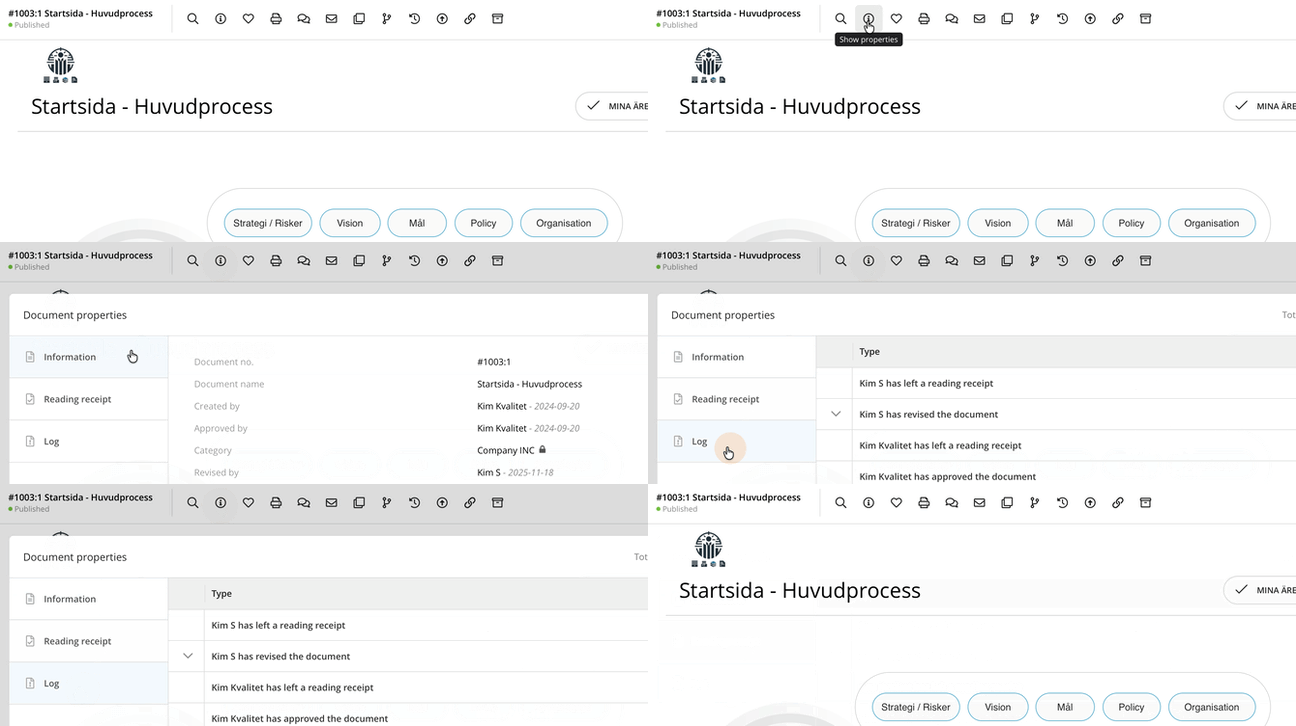
A document log can be displayed when a document is being reviewed. Open the menu, select Show properties, and then choose Log.
 |
Please note that the document log only shows information about the changes made in the current version. If you need to see what has been done in another version of the document, you must first navigate to that specific version to view its log. To be able to see archived versions, the user must have access to the archive via their profile settings.
💡Good to know
-
All time stamps in AM System are based on Central European Time (CET) in winter and Central European Summer Time (CEST) in summer, corresponding to UTC+1 and UTC+2. This means that all time stamps in the document log are shown in Swedish local time.
-
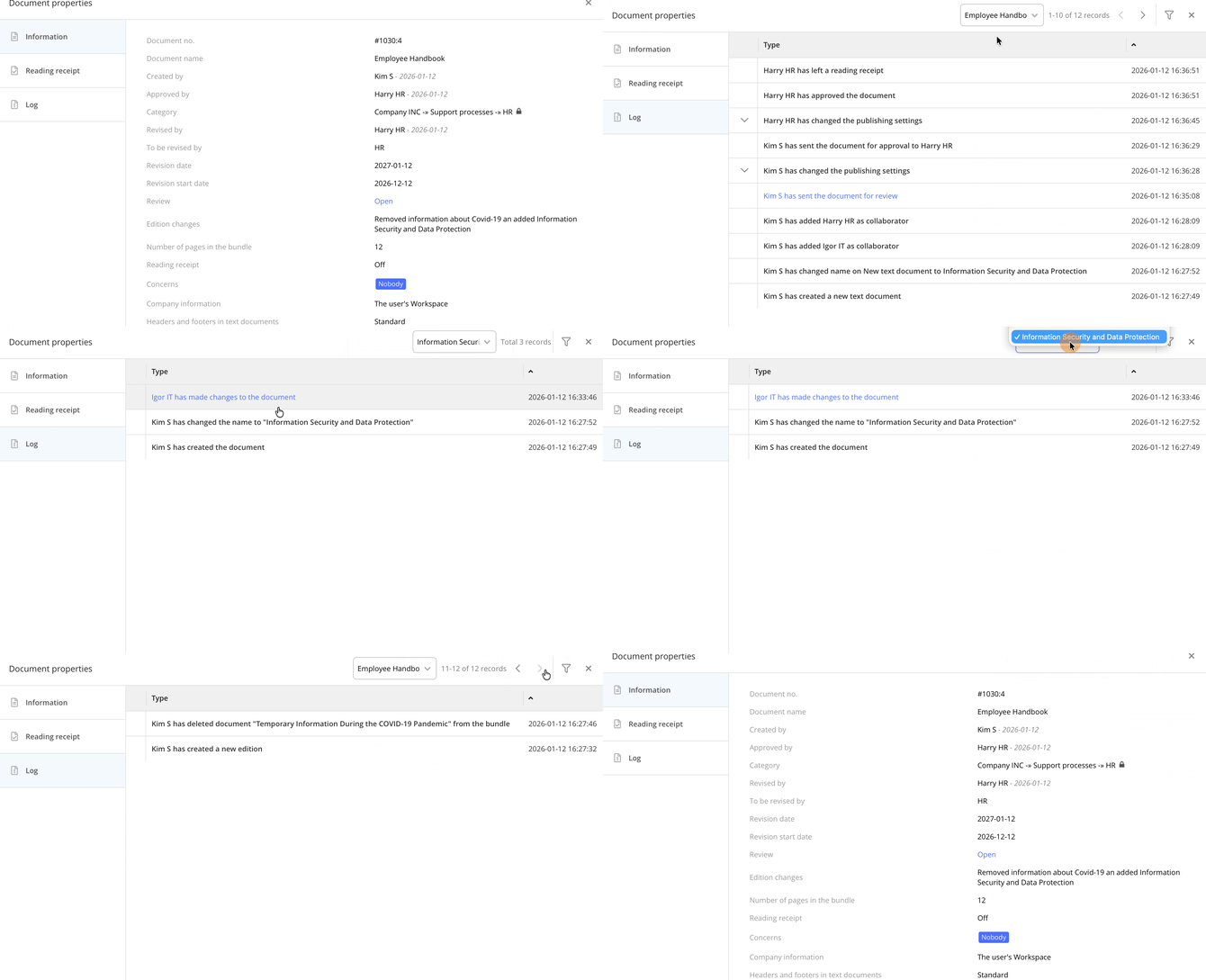
The document log for bundles works slightly differently than for individual text or layout documents. At the top of the log window there is a menu where you can either choose to see the log for the bundling itself – that is, information about what has happened in the bundling document – or see which changes have been made in the individual documents included in the bundling. If one or more documents are not shown in the list, it is because no changes have been made to those specific documents in the current version.
The following activities are displayed in the document log.
The document log shows information about these activities and provides a clear, traceable overview of how the document has been handled over time:
|
|
 |
Traceability in text documents
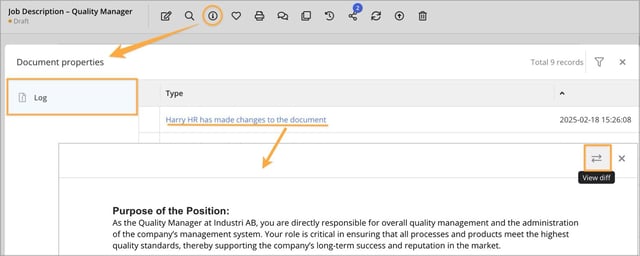
Every time a user saves a draft of a text document, all information is stored in the log under Document Properties. Using this log, you can compare the changes that have been made. Note that this change log is only available for text documents and not for layout documents.
Related Content:
- User Permissions for Documents via Profile
- What is a bundle and how is it used?
- Create and publish documents and issue new editions
- How Does Time Display Work in AM System?
- How the Share/Collaborate function works
- The Concerns and Reading Receipt Settings
- How the Send for Review function works
- Document changes between document versions
- Tags improve the searchability of your documents
- Notify relevant users and alert users about specific documents
- Show activity in Cases
- Login History