Show Activity provides an audit trail for cases and documents all activities, changes, and status updates that occur throughout the case lifecycle. The function supports requirements for traceability and transparency within quality management systems and provides a reliable basis for follow-up as well as internal and external audits.
The Show Activity function is available from the menu when viewing a case.

What is Show Activity?
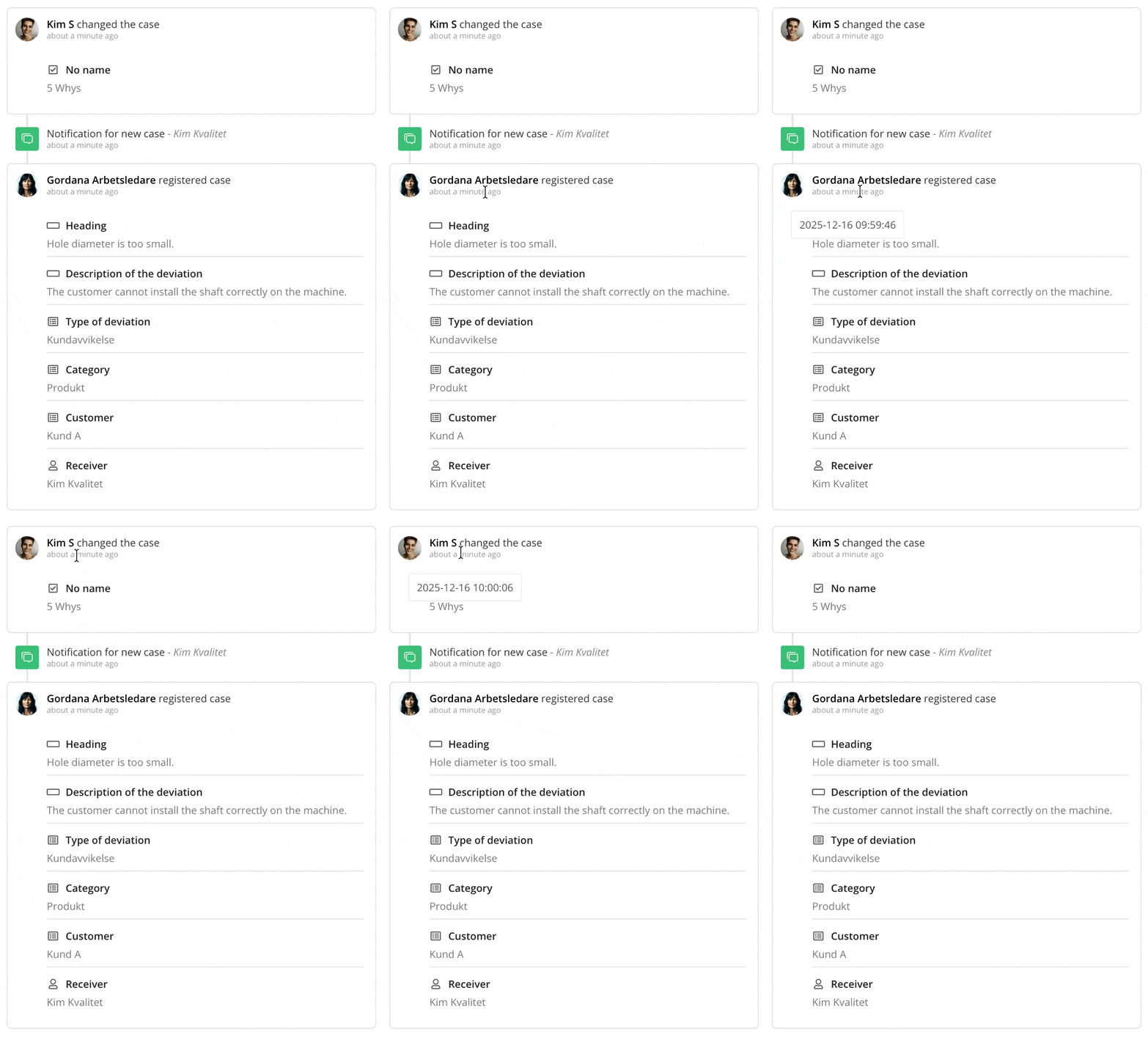 Show Activity provides a chronological, read-only history of all activities and changes that have been made in a case. The information is recorded automatically by the system and cannot be edited afterwards. The audit trail includes both manual actions performed by users and automatic events generated by the system.
What is recorded?
In Show Activity, you can see for example:
-
Creation of the case.
-
Additions, changes, and deletions of information in case fields.
-
Changes to the case status. Information about when a message add-on has been triggered and who it has been sent to.
For each event, you can clearly see:
-
What has been changed or carried out.
-
Who has added, modified, or deleted information.
-
When the change or event occurred.
-
Whether the event was created by a user or automatically by the system.
Good to know
-
The information shown in the log is based on the user’s permissions and only displays what they are authorized to see. As a result, the content may vary between users depending on their access level.
-
Keep in mind that information saved in list fields is shown in the log with the value that applied when the user registered the case. This means the log reflects the option that was actually selected at the time of registration and in the language the user saw in the form. The log therefore acts as a historical snapshot and is not affected by later changes to the list content.
Field names work differently. In the log, the field name is shown in the language selected in the user’s profile. If that language is not active in the form, the form’s default language is shown instead. Unlike the list value itself, the field name in the log may therefore change if the field is renamed later.
In practice, this means the log may look different for different users. For example, if a user with English selected registers a case and chooses the value "Product Non-Conformance" in the "Non-Conformance" list field, a user with Swedish selected may later see the same case with the field name translated to "Typ av avvikelse" and the field value shown as "Produktavvikelse", provided the form is translated and both languages are active.
In the log, however, the value shown is the one that was actually selected at the time of registration. This means the Swedish user will see the Swedish field name, but the value "Product Non-Conformance" in the log. If a list value is later renamed, the original value will still be shown in the log. This is important to keep in mind during follow-up, review, and auditing, since the log is intended to reflect the information that formed the basis of the user’s registration at that specific time.
-
Except for field names, the information shown in Show Activity is read-only and cannot be changed.
- All events are shown in chronological order, with the most recent activity at the top of the list. Read more about timestamps in AM System here.
- Timestamps are shown in a relative format, for example how many days ago something happened. To see the exact time, hover over the relative timestamp to display the precise date and time. In AM System, all timestamps are based on Central European Time (CET) during the winter and Central European Summer Time (CEST) during the summer, which corresponds to UTC+1 and UTC+2, respectively. This means that all events in the system—such as timestamps in cases are displayed according to Swedish time.
- Automatic events, such as notifications, are clearly marked as system events in the log. This makes it easy to see whether an action was performed automatically by the system or manually by a user, which supports follow-up, troubleshooting, and auditing.