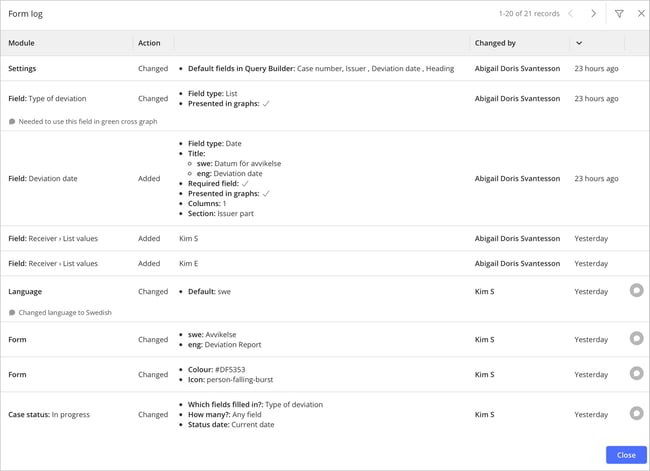
Starting from version 6.3.003, all changes made to forms in Classic are logged. This means that users who are authorized to administer forms can see exactly what was changed, when the change was made, and by whom.
Why this feature matters
When several people are involved in developing, adjusting, or administering forms, it can be difficult to understand afterward exactly what changed. Even small tweaks to a setting, a reworded field, or a new mandatory input can quickly affect how the form is used in day-to-day work. Without a clear history, it takes time to work out what actually happened and why a form is behaving differently than before.
The log gives you a consolidated view of the form’s change history. Step by step, you can see how the form has evolved over time, which settings were modified, in what order, and who was responsible for each change. This makes it possible to follow up decisions, restore previously working states when needed, and ensure that all changes are made in a controlled and traceable way. In turn, this reduces the risk of misunderstandings between administrators and provides a more reliable basis both for daily work and for follow-up in, for example, internal audits or external reviews.
This provides several advantages:
Improved traceability in form administration
Easier troubleshooting when a form behaves differently than before
Better visibility into who made which change
Stronger basis for following up on changes to forms and settings
What is logged?
Form logging applies from version 6.3.003 onward. All changes made to forms are captured in the log – for example when fields are added, modified, or removed, as well as when different settings are updated, such as the status of add-ons and other related options. Changes made in profile settings before version 6.3.003 do not appear in the log and therefore cannot be tracked using this feature.
In the log, authorized users can see:
-
Which changes and additions have been made to the form
-
Who made each change
-
When the change was made
- Any comments added in connection with a change
❗️Note: Timestamps are shown in a relative format, for example how many days ago something happened. To see the exact time, hover over the relative timestamp to display the precise date and time. In AM System, all timestamps are based on Central European Time (CET) during the winter and Central European Summer Time (CEST) during the summer, which corresponds to UTC+1 and UTC+2, respectively. This means that all events in the system—such as timestamps in cases are displayed according to Swedish time.
Accessing the log
The form log is available to all users who, through their profile settings, have permission to edit a form. This includes both Case administrators and users with the profile setting Ability to change form. These users can access the log directly on each form while it is being edited.
Do the following:
-
Go to Case Management » Settings.
-
Open the form you want to review.
-
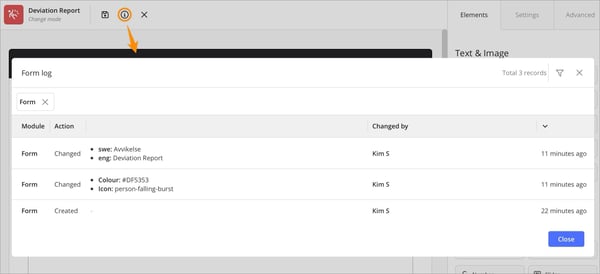
Click Form log in the menu to see all changes and additions for that specific form.
Adding comments to logged changes
The log also includes a comments feature that lets you supplement a recorded change with a short description. This is designed to increase traceability and give administrators more context around each update, making it easier to understand why a change was made. In turn, this simplifies follow-up, handovers, and ongoing form administration.
|
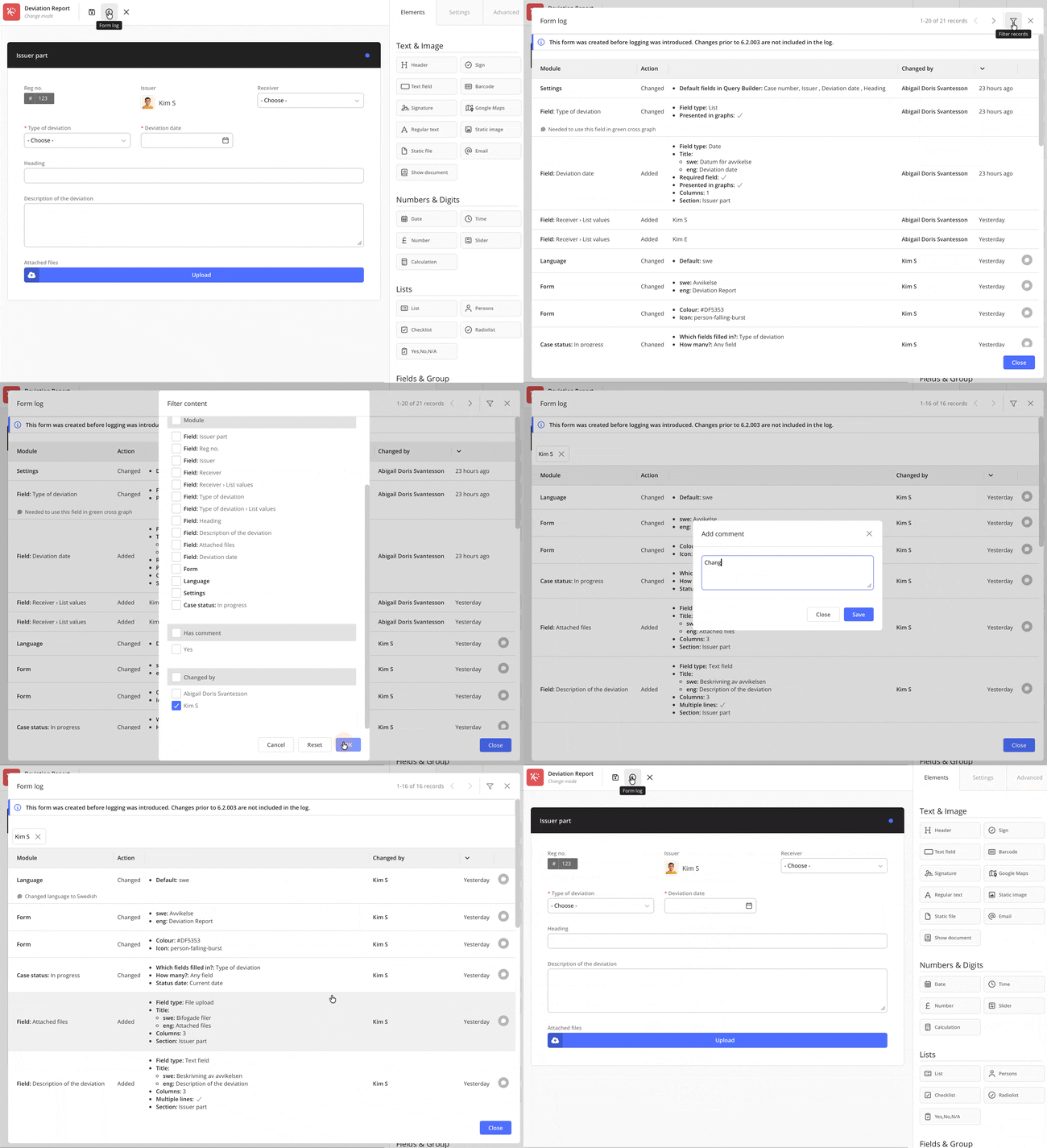
To add a comment, click the speech bubble icon on the far right of the log entry. Only the user who made the change can add a comment, but anyone with access to the log can read it. Each log entry can have one comment, and the author can return later to edit or delete that comment if needed.
💬 Keep in mind that the change must be saved before you can add a comment to the log entry. Only after the form has been updated and the change is recorded in the log will the comment field be available, allowing you to add your note and save it together with the log entry.
Filtering the log
The log also includes a filter function that helps you narrow down the view so you can focus on the information that is relevant right now. For example, you can filter by specific types of changes, by changes related to a particular field, or by a specific user to see exactly which updates that person has made.
Good to know about the form log
- If a user is removed, deactivated, or otherwise loses access to the form, that person can no longer be selected in new cases. From a technical perspective, however, the user remains in the form’s person field until the form is edited and saved. Only then does the system automatically remove the user from the field, and this action is also recorded in the form log.
As a result, it may appear in the log as if the person who saved the form manually removed the user, even though it is in fact an automatic cleanup of users who were already invalid at that point. Note that this is not new behavior; the system has always worked this way. The difference is that it is now more visible because the information appears in the form log. - You can view a field’s ID number—used, for example, when referencing a specific field in an incoming webhook—by hovering your mouse over the field name in the log.

- The field types Text field and Regular text cannot be given custom names. As a result, the field name is not shown in the form log. Instead, the field’s ID number appears as the name, for example: Field: textfield-2
- If a field is only moved within the same section, that change is not recorded in the log. However, moving a field from one section to another is logged.
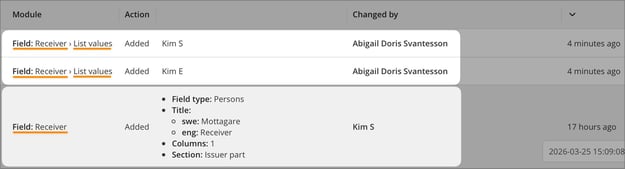
- Edits to values in value lists are logged separately and therefore do not appear in the same log entry as the field itself. For example, if you have a person field titled Receiver, changes to the field are shown in the log under Field: Receiver, while all changes to the selectable values in the list are shown under Field: Receiver › List values. In the example below, Kim S first creates the person field Receiver. Abigail then updates the person list by adding Kim S and Kim E as selectable values.