In AM System, you can create two types of documents: Text Documents and Layout Documents. If you want to include both Layout Documents and Text Documents under the same document number, you create what is called a Bundle.
This article provides short videos demonstrating how to create a text document, publish the document, and where to create a new edition after the document has been published.
Create a Document
The function to create a draft document can be found under Documents » My Documents » Create New Document. In the dialog box, first select the type of document you want to create. This guide shows how to create a text document and where your draft is saved after you click Save.
Tips: If you do not see the option to Create new document, it is because you do not have the rights to create new documents. An administrator can manage these rights through a profile setting.
Publish a Document
When your document is complete, and if needed has undergone a review process, it is time to publish it in your management system. Users who have the profile settings Submit documents to the organization and revise documents/templates can, via the Publish menu, select which user will approve the document for publication. Users who have the profile setting Approve and publish documents and who are selected as potential approvers in the relevant category can then approve the document for publication.
Read more about which profile settings are required to publish documents, and how to specify which users are allowed to approve documents for publication in each category, in the following article: Grant users the ability to approve and publish documents.

Here, we show how to publish a text document.
- Approving a document means it is approved for publication.
- Before a document can be published, it must be placed in a category, and the category’s settings determine who is allowed to approve/publish the document.
Requirements for Publishing a Document:
- The document must be placed in a category.
- The category settings determine, who can approve/publish the document.
You have permission to publish:
- If Extra Fields or Tags have been created on the site, the document can be tagged with them during publishing.
- Tagging can also be done after the document has been published.
- If the document has been previously published, the publisher can:
- Describe what has changed in the new version.
- Decide whether read confirmation should be required for the new version.
You have permission to send to the organization:
- Before sending for approval, you can:
- Describe what has changed in the version.
- Decide whether read confirmation should be required.
- The document can be shared with the approver. This allows minor corrections (e.g., spelling errors) to be fixed without interrupting the approval process.
- The document header will indicate that the document has been sent for approval, and the sender has the option to cancel the approval request if needed.
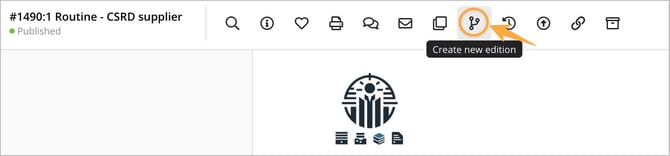
Create a New Edition of a Document
When a published document needs to be updated, you create a new edition, which is published in the same way as the first edition. Requirements for Creating a New Edition, the user must have the profile setting: Send document to organization and Revise documents/templates
Upon publication, the document will receive a new version number.