
Bakgrund och syfte
The authentication function is a security feature in Classic designed to provide extra control for particularly critical actions. It is independent of login, SSO, and login-based two-factor authentication. Instead, it means that the user must confirm their identity again when carrying out an important activity.
The goal is to reinforce three things:
Attribution (right person): ensuring that it really is the correct user who performs the action.
Intent (“I meant to sign”): ensuring that the user actively confirms a decision or approval, and does not do it by mistake.
Traceability (audit trail): ensuring that it is clearly visible afterwards when extra authentication has actually been carried out in connection with a specific activity.
How the function works
Activation
The function can be activated by a user who, in their profile, has the setting Access to all settings. To activate the function, go to Documents » Settings » Advanced settings. Under the heading Authentication, you will find a setting where you choose which activities should require authentication. If you cannot find the function, it may not yet be activated in your system. In that case, contact our support and we will help you turn it on.
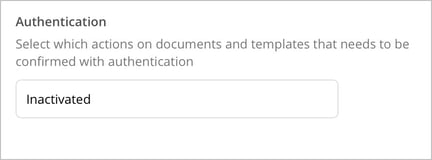
Authentication may be required for the following activities:
-
Approve/Publish documents and templates
- Authentication is required when the user chooses to approve a document for publication.
-
Leave reading receipt
-
Authentication is required when the user actively chooses to leave a reading receipt for a document.
-
-
Review documents and templates
- Authentication is required only when the reviewer submits their review, i.e., gives a thumbs up or thumbs down. (The user can still write comments during the review without additional authentication.)
- Revising documents and templates without change
- Authentication is required when the user chooses to revise a document or template without changing the content, i.e., without creating a new version.
How authentication works
How the user authenticates depends on the account type and security settings:
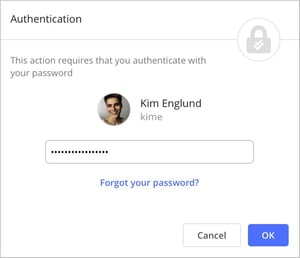 Local users (without two-factor authentication): the user re-enters their password.
- Local users (with two-factor authentication): the user enters their two-factor code (not their password).
- Microsoft Entra ID users: these users currently cannot complete extra authentication. Read more about this below.
❗️Notera: The number of authentication attempts is not affected by the Login Settings under Administrator » Settings » Password/Security. Failed authentication attempts are therefore not deducted from any login attempt limit configured there, which means there is no maximum number of attempts specifically for authentication.
Traceability
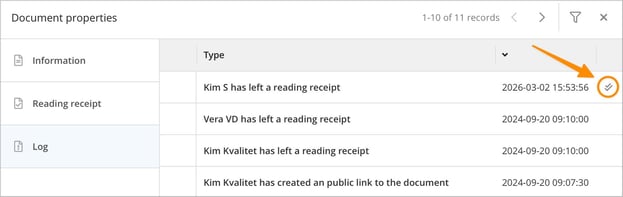
When an activity has required and been completed with extra authentication, this is shown in the log with a “double checkmark” icon to the right of the timestamp. This symbol is an audit marker that confirms the user actually had to re-authenticate to complete that specific action.
Limitations
There is one limitation related to the login method that is important to be aware of:
Users linked to Microsoft Entra ID currently cannot complete extra authentication, because they do not have the same technical possibility as local users to re-authenticate. These users therefore never receive a prompt for extra authentication – even if the function is activated. Since extra authentication cannot be carried out for these users, no icon is shown in the log when the activity has been performed.