
|
Availability and Terms for the Charts Feature Please note that this feature is an optional add-on that is included in certain pricing plans but can also be purchased separately. In that case, the cost is 550 SEK per month and will be added to your next invoice. If you would like to activate the feature or have questions about your pricing plan, please contact us at sales@amsystem.com. |
In many organizations, large amounts of data are available. The challenge is rarely access to information, but rather creating a clear overview without having to search, click, and filter through each area and role. When gaining an overview requires too many steps, clarity and momentum in management can be lost. This is where the Charts feature in Classic makes a real difference.
 |
What are Charts in Classic?
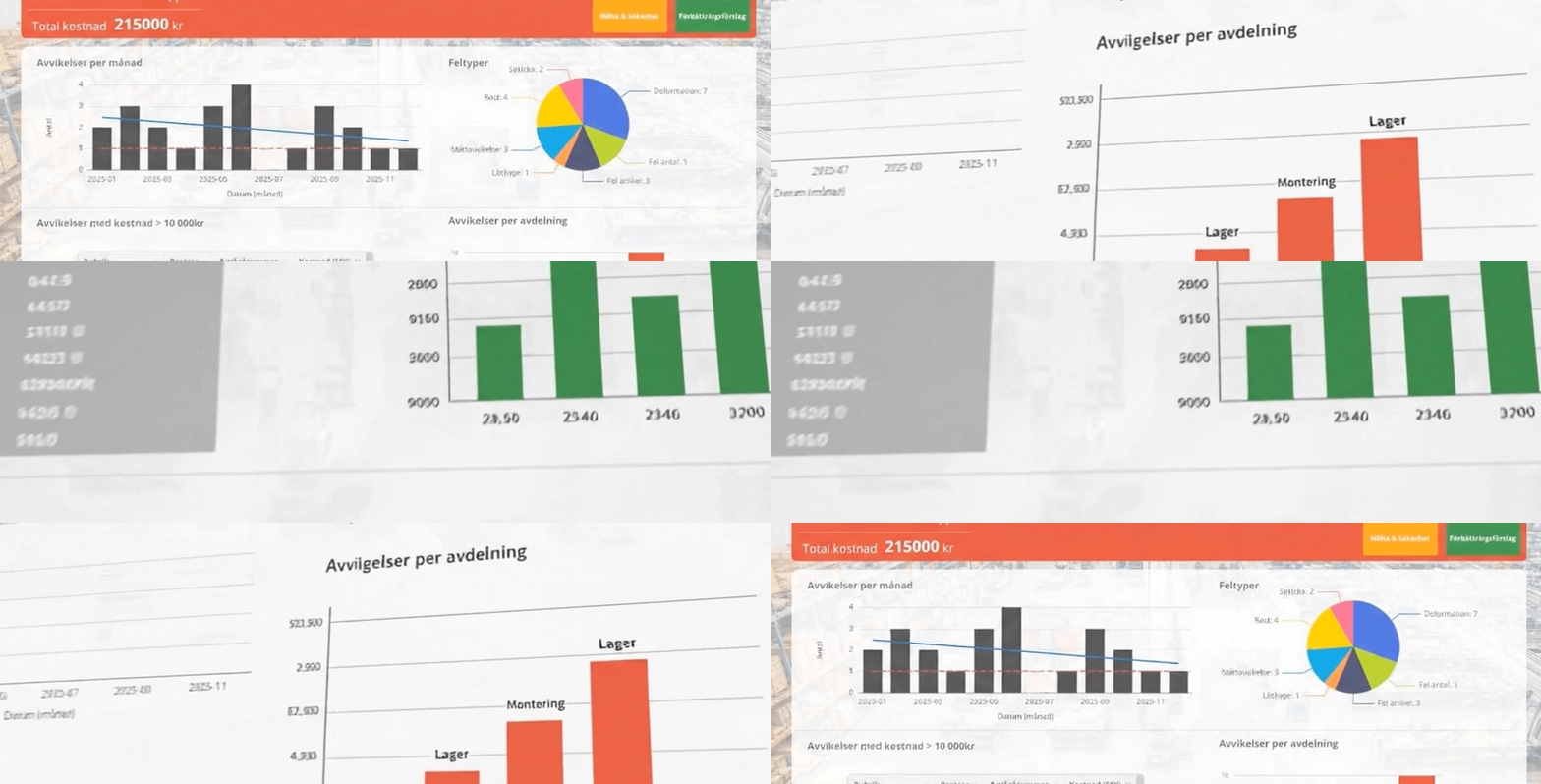
Charts is a feature that allows you to create interactive charts directly in layout documents, based on search queries built with the Query Builder. Charts can visualize data from both cases and documents, either separately or combined into a unified overview. When a document is opened, the charts are updated automatically, providing users with a continuously up-to-date view of the organization’s current state. This makes it possible to transform large volumes of data into a clear and interactive overview directly within the management system—without the need for external tools or recurring manual compilation.
With Charts, you can create dynamic dashboards that provide a clear and up-to-date overview of the entire organization.
A clear and current overview enables the organization to gain insight into results, trends, risks, and deviations across areas such as quality, safety, production, supplier management, and document management. The information is easy to understand, simple to follow over time, and can be explored in more detail when needed. The result is better decision-making, clearer priorities, and a more proactive approach to management throughout the organization.
The video below shows concrete examples of how Charts can be used to create real value in everyday work.
Charts are particularly well suited for processes where follow-up, analysis, and clear governance are critical. Examples include management processes for monitoring quality, safety, and risks; operational processes in production where deviations, targets, and trends need to be tracked over time; and support processes such as supplier management and continuous improvement. Charts also add significant value in document management and planning by visualizing status, workload, and compliance. What these processes have in common is the need for a unified and up-to-date overview that makes it easier to prioritize the right actions and make well-informed decisions.
How to create a Chart
Since Charts are created and built within standard layout documents, you need access to the Documents module. In addition, the user must have access to the Documents module and be allowed to create documents via their profile settings. Creating a Chart is straightforward and follows the same intuitive workflow you are already familiar with for other objects in layout documents.
💡For the best experience and correct display of charts when editing layout documents, we recommend using Google Chrome or Microsoft Edge. You can read more about these recommendations later in this article.
- Start by creating a new layout document or opening an existing one.
- Add a Chart object by clicking the Chart icon in the menu.

- Double-click the newly created Chart object to open the configuration dialog.
- Choose whether the chart should be based on data from Cases or Documents. To create a search query based on cases, the user creating the query must have access to the Cases module.
- Create your search query in the Query Builder by clicking - Select -. If you choose to create a chart based on Cases, you must first select which form the data should be retrieved from. (It is not possible to create a chart using data from multiple forms.)
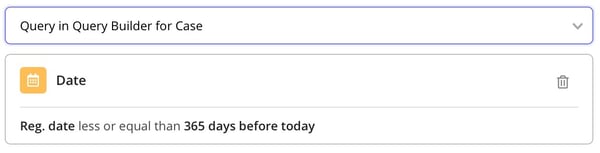
The search results from this query will then serve as the data source for the chart. It is therefore important to design the query carefully to ensure that the data you want to visualize is included in the results.t. - Select the desired chart type.
- Choose data for the X-axis and Y-axis if you are using a column or line chart, or select a count or a specific field for other chart types. Please note that to use a field from a form, the field must be enabled with the field property “Presented in graphs”.
- If needed, further customize the chart. For example, you can add a trend line, a target line, or threshold values, or group the data by workspace or department. Some chart types also allow you to define colors for chart elements such as bars and lines.
- Click Save to view the result. Note that interactive features are not available while the document is in edit mode. For example, you cannot click chart elements to view underlying data or use the crosshair function in line and column charts until the document is in review mode.
- Once the chart has been created, it can be managed just like other objects in layout documents. For example, you can adjust line and background colors, change shape, size, and fonts, and move the chart to fit the document layout.
Edit an existing Chart
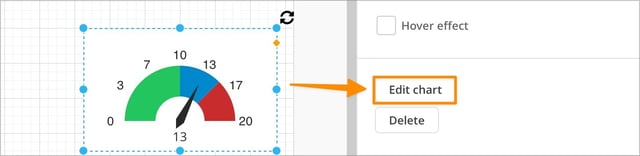
To edit an existing chart, you can either double-click the chart while the document is in edit mode, or select the chart and choose Edit chart from the Format tab in the right-hand menu.
Available chart types
Charts in Classic support several different types of visualizations:
| Chart type | Description |
Best suited for | |
 |
Bar chart | Displays data as vertical or horizontal bars. | Trends, target tracking, and changes over time, such as monthly quality results. Comparisons between categories, for example deviations by department or defect type. |
 |
Line chart | Shows development over time using lines. | Trends, target tracking, and changes over time, such as monthly quality results. Comparisons between categories, for example deviations by department or defect type. |
 |
Number | Displays a total count as a large number inside a colored circle. | Quick overview of totals, such as the number of open cases. |
 |
Pie chart | Shows how a total value is distributed proportionally. | Distribution across categories, for example the share of deviations by type. |
 |
Speedometer | Displays a single value in relation to a defined range. | Monitoring of key performance indicators, such as target achievement or status levels. |
 |
Stoplight | Displays a value using colors based on defined threshold values. | Clear status indication, for example approved / warning / critical status. |
 |
Grid | Displays data in a grid format with sorting capabilities. | Detailed follow-up and comparisons where exact values are important. Values can also be displayed as a list. |
 |
Green Cross | Used to visualize deviations, incidents, or other events day by day over a selected period of time. | This chart is suitable when you want to track deviations day by day and get a quick overview, especially in operations with daily follow-up, for example within quality management, work environment management, or other deviation management. |
Interactive charts
When reviewing documents, charts are interactive, making it easier to explore the underlying data behind each visualization.
Clicking on a chart element opens a search result showing the data that the element represents. This allows you to quickly move from an overview to detailed information, such as seeing which individual cases or documents are included in a specific bar, line, or segment.
Which metadata columns are shown in a search result when a user clicks a chart element is controlled by the “Default Fields in Query Builder” setting in the relevant module.
If the chart displays information from Cases, the “Default Fields in Query Builder” setting is managed in the corresponding form.
If the chart displays information from Documents, the “Default Fields in Query Builder” setting is managed in the Documents module under Documents » Settings.
To ensure that the search result displays relevant metadata and makes it easy for users to immediately identify the right information, it is important to review and adjust these settings regularly.
The crosshair feature in line and column charts allows you to hover over the chart and clearly view exact values for a specific point in time or category. This is particularly useful during follow-up meetings and analysis, as it enables quick interpretation of figures without the need for separate lists or reports.
In the grid chart type, columns can be sorted directly within the document. By clicking on the column headers, users can sort by date, status, department, priority, and more. This makes the table useful both for a quick overview and for more detailed follow-up, such as identifying high-priority cases, recent updates, or areas with the highest number of deviations.
Good to know about Charts
-
Charts always respect the user’s access rights in both the Cases and Documents modules. This means that if a user does not have access to all cases included in the Query Builder query behind a specific chart, no information or statistics related to those cases will be shown in the chart for that user. As a result, the same chart may appear differently to different users depending on their access permissions.
-
A maximum of 10 charts per layout document is supported to ensure fast loading times and continued high performance.
- The Safari browser has a known limitation when editing layout documents that contain charts. Charts are only rendered correctly when the zoom level is set to 100%. At other zoom levels, the appearance of the charts may look incorrect while you are editing. This is a limitation in Safari and does not affect how the charts are saved. The charts are stored correctly in the document and are displayed as expected when the document is opened in other browsers. For the best experience and correct display when editing charts, we recommend using Google Chrome or Microsoft Edge.
-
Charts are not displayed in thumbnails, printouts, or public documents. Instead, a placeholder is shown where the chart is located, displaying the text “Graphs are not generated in print” or “Graphs are not generated on public documents.”
-
Bar, line, and pie charts that use a Query Builder query from the Documents module can currently display data based on a limited selection.
The information that can be displayed is:Created by Created Approved by Approved Revision date Revision start date Revised by Revised date Extra fields -
Trend lines and target lines are available for charts with a date-based X-axis. (The target line is displayed as a dashed horizontal line.)
-
Threshold values are supported for the Gauge, Count, and Stoplight chart types.
-
For the Table chart type, at least one value must be selected from the search query in order to be displayed in the table.
-
The Table chart type also requires that at least one column from the Query Builder is selected to display information in the chart.
Summary – why use Charts?
With Charts in Classic, you create a shared, up-to-date, and fact-based overview directly where the work is done. This provides better decision support, clearer accountability, and enables a more proactive way of working across the entire organization.
When dashboards are built on the same continuously updated data, the need for external tools, manual administration, and advanced IT skills is reduced. The result is increased engagement, better control, and management that truly supports everyday operations.
Start creating a Chart today and experience the difference with dynamic dashboards in Classic.