
By importing a Word document, you can quickly transfer the content from a Word file into a new document in Classic. This is especially helpful when you already have procedures, instructions, policies, or other documents in Word format that you now want to manage in Classic.
 |
Instead of opening the Word document, copying the content, pasting it manually, and then adjusting the formatting, you simply import the content directly. This saves time, reduces manual effort, and gives you a better starting point for your continued work in Classic.
When is this feature useful?
mporting a Word document is particularly effective when you want to create a new document in Classic based on an existing Word file.
For example, you can use it when you:
-
need to move existing documents into Classic
-
create new documents using earlier Word files as a starting point
-
want to transfer procedures, instructions, policies, or checklists
-
want to reduce manual copying and subsequent adjustments
-
want to bring in content and formatting in a more structured way than with standard copy-and-paste
You can still copy and paste content manually if you prefer. However, when you want to transfer an entire Word document, using the import feature is usually the better option.
Benefits of importing Word documents
When you import a Word document, Classic does its best to preserve the document’s original structure and layout. This often gives a better result than copying and pasting the content manually.
The import feature helps you to:
-
transfer the content directly into the document editor
-
optionally give the document the same name as the imported file
-
retain most of the formatting so the document looks as close to the original as possible
-
automatically create a table of contents if the original document has one
-
adapt the page orientation, for example portrait or landscape
-
keep the relative size of images as far as possible
- andle tables in a more consistent and uniform way
More details about tables:
- Tables without visible borders keep their appearance when imported. Tables that have any type of border are assigned the table style Normal.
- The import feature also respects table headers defined in Word. If a table in the original file is configured with Header Row or Repeat Header Rows, the table in Classic will automatically receive a table header.
- If a table in the Word document uses background colours applied directly to cells, these colours are carried over during import. This applies, for example, when you have selected one or more cells yourself and chosen a fill or shading colour in Word.
- Colours that come from Microsoft Word’s built‑in table styles are not imported. This includes colours added automatically via a table design, such as coloured header rows, alternating row colours, or a highlighted first column.
- Bulleted and numbered lists that span multiple rows inside tables are not imported. This is because the behaviour is specific to Microsoft Word and lacks a general standard, which means it cannot be reliably recreated during import.
How to import a Word document
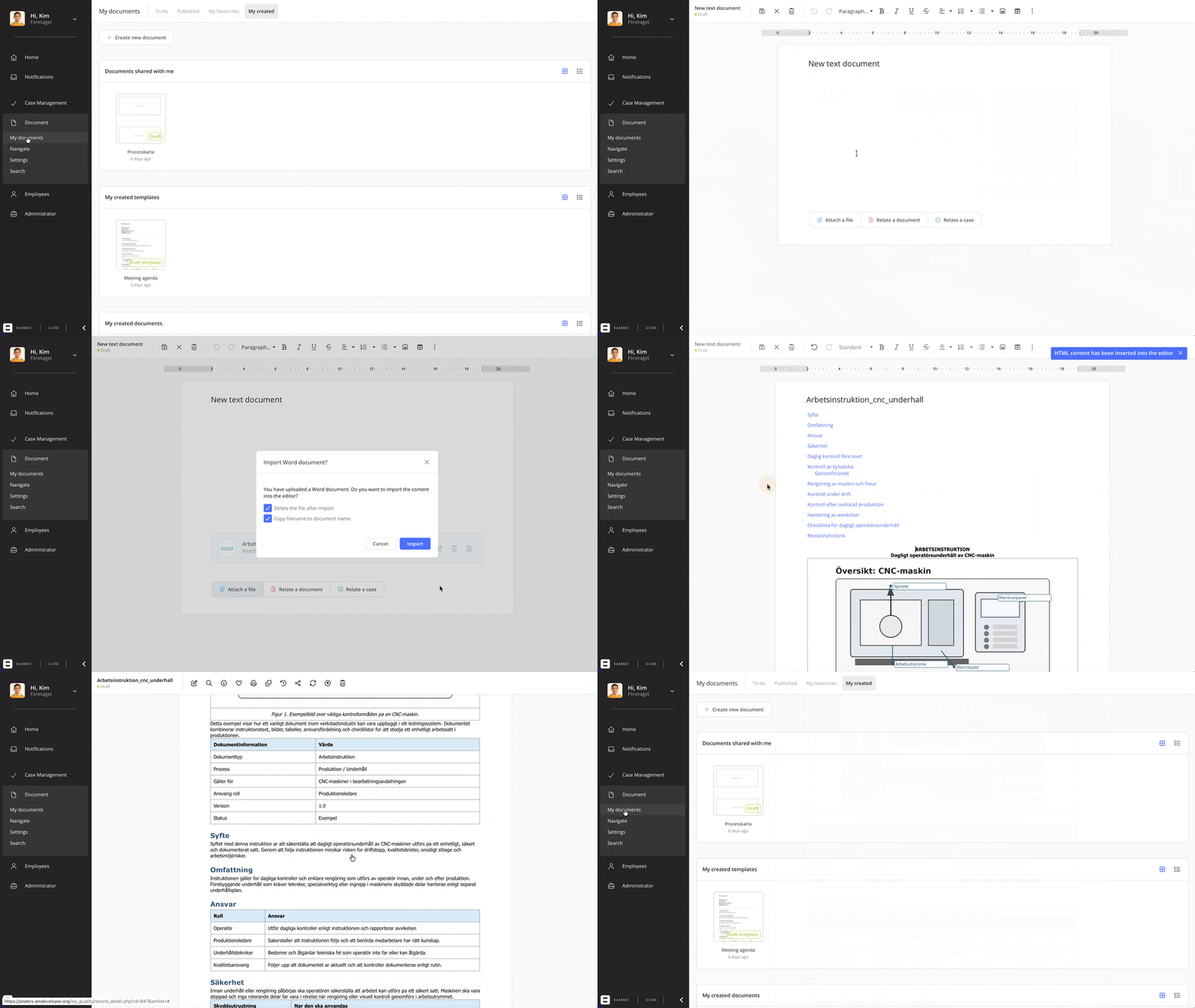
- Create a new blank document in Classic.
- Attach the Word file you want to import, either by clicking Attach a file or by dragging and dropping the file into the document.

- If the document is a new, empty draft and the attached file is an importable Word document, the dialog Import Word document? will appear.
- Choose the import settings you want to use
- Click Import.
- After the import, review the document and make any necessary adjustments before publishing.
Import settings
When the import dialog appears, you can make two choices before importing the content.
-
Delete file after import
-
If you select this option, the attached Word file is removed from the document in Classic after its content has been imported. This is suitable when the Word file is only used as a source for the import and does not need to be saved as an attachment. If you leave this option unchecked, the Word file remains attached to the document after the import.
-
-
Copy file name to document nam
- If you select this option, the document in Classic will get the same name as the imported Word file.
This is useful when the file name already matches the document title, for example “Procedure for deviation management” or “Instruction for machine maintenance”.
- If you select this option, the document in Classic will get the same name as the imported Word file.
When is the import feature shown?
The import dialog appears automatically when you attach a Word file to a brand‑new draft that is still empty and where the document name has not been changed.
If the document is empty but no longer a completely new draft (for example, if you have already named the document or saved it at least once), no dialog is shown automatically. Instead, an import button appears next to the attached Word file. You can click this button to start the import. The button is only visible as long as the document does not contain any content.

When you start the import using the import button, you will not see the same options as in the automatic dialog. This means you cannot directly choose to delete the file after import or copy the file name to the document name. In this mode, Classic keeps the attached file unchanged and the document retains its current name.
If you still want to perform these actions, you can do them manually afterwards. For example, you can:
- remove the attached Word file from the document once you have verified that the content was imported correctly
- update the document name in Classic so that it matches the file name, or choose another name that better describes the document’s content and purpose
If the import feature does not appear, it is most likely because the document already contains content, an import has already been performed in the document, or the file is not in a supported format.
Supported file formats
The import feature supports Word files in .docx format.
Older Word files in .doc format cannot be imported directly; to import these, first resave the document as a .docx file.
💬 Tip: If you have many older Word documents, you can explore batch converting them locally, for example by using Microsoft Word with a macro or a PowerShell script that automatically resaves all files in a folder as .docx. Coordinate with your IT department to see if they can support a local conversion from .doc to .docx. Regardless of approach, it is wise to start with a smaller selection of documents and review the results before converting a larger volume.
Things to check after import
Word documents can be structured in many different ways. For that reason, you should always review the document after import and, if needed, adjust content, formatting, images, and tables before publishing.
- headings and paragraphs look correct
- the table of contents is accurate
- images appear in the right size and in the right place
- tables have an appropriate layout
- lists and numbering appear as expected
Some parts may require manual adjustments after the import. For example, numbered lists are not always imported correctly if the list has been interrupted by body text or other formatting in the original Word document.
❗️Good to know:
-
Images that have been rotated in Word are not imported as rotated in Classic. Instead, they are shown according to the image’s original orientation. When importing images, the layout and positioning may sometimes differ from Word, because Word and Classic handle embedded objects, captions, and image placement in different ways. If the document contains more complex image and caption layouts, it can be helpful to use a table in Classic to control the positioning.
-
Tabs and tab stops from Word are not recreated when you import a Word document into a text document in Classic. If tabs were used to create spacing or position text in columns, the layout may therefore look different after the import.
Classic’s text editor does not support tab stops in the same way as Word. For example, if you have used tabs to place headings or other information side by side, we recommend using a table instead. Tables provide a more predictable layout and can either be created in Word before import or added directly in the text editor afterwards.
- Empty line breaks from the Word document are not imported. This keeps the document cleaner and reduces the risk of unintentional blank lines being brought into Classic. Use the Paragraph setting under Global formatting of text documents to control how much spacing you want before and after each paragraph.
- Chosen fonts and font sizes for normal body text are not imported unless the text is formatted via styles, such as headings. However, basic text formatting like bold, italics, underline, and strikethrough is preserved. Classic also does not support tabs or indents in the same way as Word, which means such indents are not recreated on import.
- Text colour is not imported, so all text is reformatted to black regardless of the colours used in the original Word document. If you have, for example, highlighted important words or sections in red or blue in Word, these parts will appear as black text after import in Classic.
Importing multiple Word documents
It is not possible to import several Word documents into the same document in Classic.
If you need to combine content from multiple Word files into a single document, we recommend first merging the content in Word and then importing the combined Word file into Classic.