
Background
Sometimes, it can be beneficial to attach files, such as PDF documents, to a text document in order to consolidate information. In addition to attaching files, you can also link to other documents or specific forms for direct access to register cases.
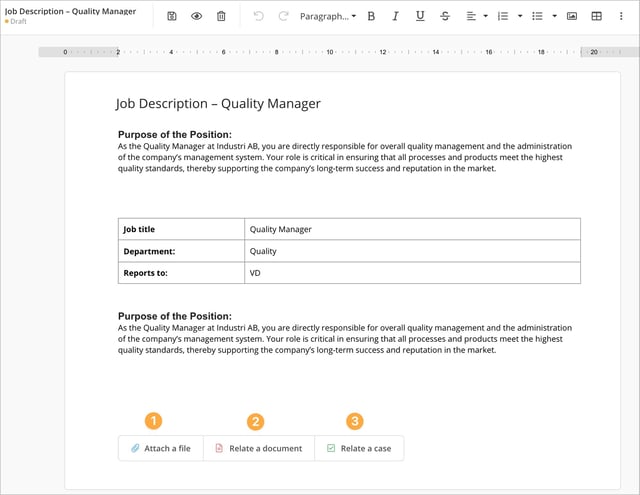
1. Attach a file
You can attach files by using the Attach a file feature located at the bottom of the document while editing. Click the button to upload a file from your device.
💬 Tip: You can also attach a file by dragging and dropping it directly onto the Attach a file button. When you release the file over the button, the upload will start automatically and the file will be added as an attachment to the document you are currently editing. This can be a faster way of working if you already have the file open or easily accessible on your device.
Attached files can be downloaded by all users with access to the document. Most file formats can be uploaded to the AM System; however, please note that the file is not viewable directly within the AM System. Therefore, users must download the file to their devices in order to view its contents.
Note:
- Please be aware that published documents are static, meaning that attachments can only be added or removed while editing the document (before publication) or during the creation of a new version of the document. For more information, refer to the article on removing or renaming an attached file.
-
If you encounter issues with attaching a file and the attachment gets stuck during upload (e.g., remains at 0% or 100%) without achieving the "uploaded" status, it may be due to the file's content being perceived as potentially harmful by the system's security features. Learn more about this in this article.
Import Word documents
The Attach a file feature in text documents can also be used to import Word documents into Classic. When you attach a Word file in .docx format to an empty text document, you are given the option to import the file’s content directly into the document. This is a convenient alternative to copying and pasting text manually, especially if the Word document contains headings, lists, tables, or images. For more details on how the import works, see the article Import Word documents into Classic.
2. Relate a document
In your text document, you can use the Relate document feature to link to other published documents on your site. This can be a practical way to gather related information and make it easier for the reader to find relevant content.
When you click Relate a document, a dialog box opens where you can search for the document you want to link to. You can search by:
- document name
- document number
- text within the document
You can also locate the document manually through your category tree if you prefer.
Once the document has been linked, users reading the document can access the related document through the link. If they want to return to the original document, they can do so using the blue banner displayed below the document menu bar.
It is not possible to relate to templates using the Relate a document feature. This feature is intended for linking to published documents on your site and does not support relationships to templates. If you want to refer to a specific template instead, we recommend using the Link to a specific template from a text or layout document feature. This allows you to create a link that enables the user to create a new document directly from the selected template. Read more about this in the article Working with Templates in AM System.
3. Relate to a form
By selecting the Relate a case option, you can search for the desired form either through the search bar or by scrolling through the available options. Readers of your document will have the ability to directly register a case using the selected form linked within the published text document.
💡 Please note that the ability to link to a form requires the Case Management module to be activated on your site. Users who do not have access to the Case Management feature or the selected form will encounter a denial dialog box.
Please note that when printing a document, information about attached files, related documents, and related forms will always be included. Currently, there is no option to hide this information when printing.