
With global formatting for text documents, admins can create a consistent layout for all text documents in the system, regardless of who writes them or which document is being edited. Here, you define, for example, which font, size, color, and text style should be used for both text and headings at different levels, the spacing before and after each style, and the document margins. This makes it easy to follow your organization’s visual guidelines and ensure that all documents have the same structure and visual appearance, without requiring users to make manual adjustments in each individual document.
Admins can access this setting via Dokuments » Settings » Global formatting for text documents.
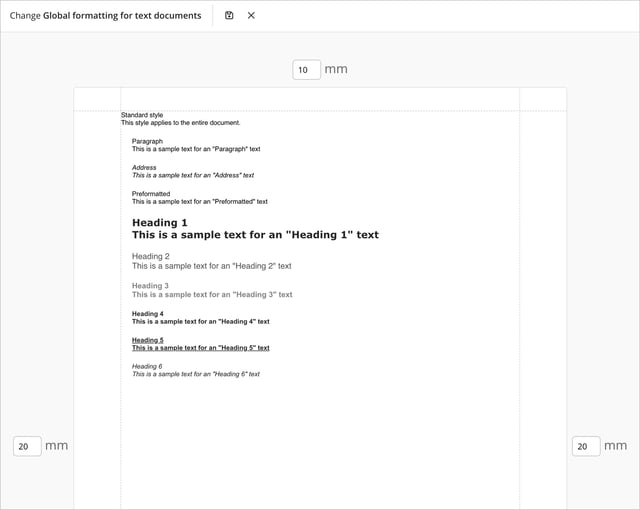
Change style
To edit a style, click it in the list of available styles. This opens the style settings, where you define how any text that uses the style will appear.
-
The Standard style can be customized by selecting the desired font and font size.
- The Paragraph style is used to define how much spacing should appear before and after a paragraph. This allows you to control the distance between different text blocks consistently throughout the document, for example between body text, headings, and lists. By setting the spacing above and below directly in the style, you avoid adding manual line breaks to create extra space. The result is a more uniform and readable document, and it also becomes easier to update the layout later – when you change the style settings, all paragraphs using that style are updated automatically.
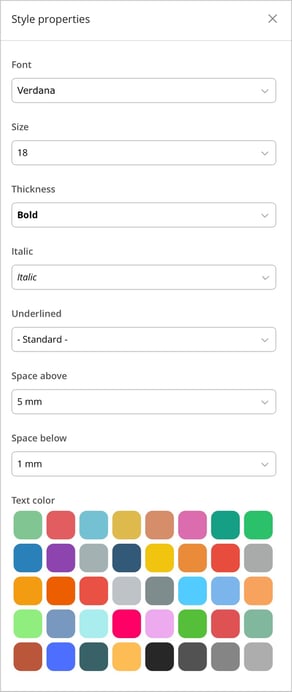
- Other styles – such as headings at different levels or special text formats – can be fine‑tuned with additional style properties as listed below.
|
Style properties
|
 |
Remember to save when you’re done updating your styles.I
❓Note: Any changes you make in Global formatting for text documents apply to all text documents in the system, including drafts, published documents, templates and archived documents