
You can find these features under Settings and through the link for Advanced Settings. To access these options, you must have the setting Access to all settings enabled in your profile under Administrate.
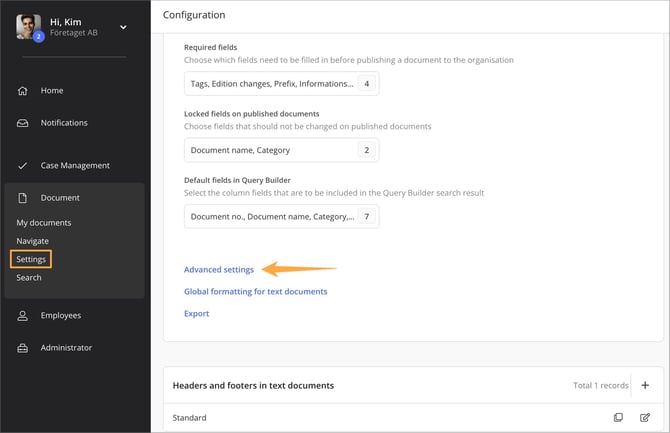
Advanced settings
💬 If the "Enables revision per document" or "Enables concerns and reading receipts per document" features are not visible on your site, it means they have not yet been activated. These features can be enabled by AM System on request. Please submit a request via Help & Feedback, and we will help you move forward and make sure you have the right conditions to start using them.
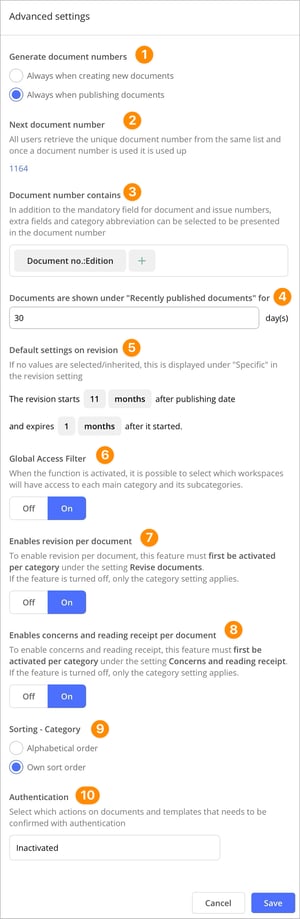
1. Genererate document numbers
Here, you can choose whether your documents should generate a document number at the time of publication or immediately when a new document is created.
2. Next dokumentnummer
All users retrieve a unique document number from the same list. This feature allows you to change the displayed number to a higher, unused number if desired.
3. Document number contains
In addition to the mandatory fields for document and edition numbers, you can include extra fields and category abbreviations as part of the document number. A dedicated Space element is available so you can insert spaces between the selected parts of the number.
Note that value lists that allow multiple selections cannot be used as part of the document number.
4. Documents are shown under "Recently published documents"
Here, you can specify the duration for which the document will be visible to all users under My Documents and the Published tab.
5. Default settings on revision
The settings you configure here will influence the default settings for your categories on the site. For additional information on how to set up document revisions in various ways
6. Global access filters
Global access filters make it possible to restrict access to specific main categories based on users’ workspaces. This feature simplifies access management and can be used to ensure that external parties, such as suppliers, do not have access to selected main categories and their subcategories. Learn more about this feature here.
7. Enables revision per document
This option supersedes category settings. For more information on this feature and important considerations for activation, please refer to the provided link.
8. Enables concerns and reading receipts per document
This option supersedes category settings. For more information on this feature and important considerations for its activation, please refer to the provided link.9. Sorting - Category
You can choose whether your categories should be displayed in alphabetical order or if you want to have control over a custom sorting in your category tree. When the Custom Sorting option is selected, users with the profile setting to manage All Categories can change the order by dragging and dropping categories into the desired sequence directly within the category tree. Note that this function cannot be used to move categories into other categories, but only to sort and rearrange the order of categories. If you want to move a category to a different category, edit the category and select its new category under the Placed under option. Learn more about how to create and manage categories here.
10. Autentication
Authentication is a security feature in Classic that requires users to confirm their identity again before certain actions can be completed. Authentication may be required for approval or publication, reading receipts, review, and revision without changes to documents and templates. Learn more about this feature here.