
Under Documents » My Documents in the menu bar, you will find the following sections/tabs:
- To Do
- Published
- My Favorites
- My Created
Documents can be displayed either as thumbnails or as a list, and you can select your preferred view using the option on the far right of each subsection. Subsections are only displayed if you are involved in that type of action. For example, if you do not have any documents to revise, the To Be Revised by Me subsection will not be shown.
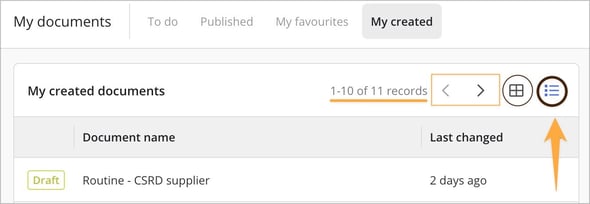
Note. A subsection list view displays 10 documents by default, with additional documents accessible by scrolling. When selecting the document view, the number of displayed documents depends on the window size. If more documents are available but hidden due to window size, the "Show More…" button will appear.
1. To Do
The To Do menu under the My Documents section helps users maintain a structured and up-to-date overview of documents requiring specific actions. Working with the To Do menu is an efficient way to organize and track document-related tasks, enhancing clarity, saving time, and improving both individual and collaborative workflows. This makes it a central feature for effective and organized document management.
Menyn Att göra är uppdelad i flera kategorier:
- Skall godkännas av mig: Här visas de dokument som har skickats till dig för slutgodkännande, det vill säga dokument som väntar på ditt beslut innan de kan publiceras eller börja gälla i verksamheten. Genom att arbeta löpande i denna lista säkerställer du att viktiga uppdateringar inte fastnar i godkännandeledet och att organisationen alltid har tillgång till rätt, godkänd information.
- Skall granskas av mig: Här visas de dokument som behöver granskas innan publicering. Det är dokument som har skickats till dig (och eventuellt ytterligare personer) för granskning och där du i regel förväntas kommentera, föreslå ändringar eller bedöma om innehål, formuleringar och omfattning är lämpliga. Genom att använda denna vy blir det tydligt vilka dokument du har ett aktivt granskningsansvar för just nu.
- Skall läskvitteras av mig: Här visas dokument som din organisation har bedömt som så viktiga att du behöver ta del av informationen och bekräfta detta genom en läskvittens. Det kan handla om nya eller uppdaterade rutiner, säkerhetsinstruktioner, arbetsmiljöregler, kundkrav eller annan kritisk information där det är viktigt att kunna visa upp, till exempel vid en audit, att berörda medarbetare faktiskt tagit del av innehållet. Genom att löpande hantera denna lista minskar du risken att missa viktiga uppdateringar och bidrar till att säkerställa regelefterlevnad och intern kommunikation.
- Skall revideras av mig: Här visas dokument som du, enligt ett förutbestämt revideringsintervall, behöver gå igenom för att revidera. Det kan röra sig om allt från instruktioner i produktionen till policys och processbeskrivningar. Denna kategori stödjer ett systematiskt och förebyggande arbetssätt där dokument hålls levande och uppdaterade över tid, vilket underlättar både intern styrning och efterlevnad av standarder.
The To Do menu is divided into several categories:
- Needs my approval - This section shows the documents that have been sent to you for final approval, i.e., documents that are waiting for your decision before they can be published or take effect in the organization. By working continuously with this list, you ensure that important updates do not get stuck in the approval stage and that the organization always has access to accurate, approved information.
- Needs to be reviewed - his section shows the documents that need to be reviewed before publication. These are documents that have been sent to you (and possibly others) for review, where you are generally expected to comment, suggest changes, or assess whether the content, wording, and scope are appropriate. By using this view, it becomes clear which documents you are currently responsible for reviewing.
- Needs a reading receipt by me - This section shows documents that your organization has classified as so important that you need to read the information and confirm this with a reading receipt. This may include new or updated procedures, safety instructions, workplace regulations, customer requirements, or other critical information where it is important to be able to demonstrate, for example during an audit, that the relevant employees have actually taken part of the content. By managing this list on an ongoing basis, you reduce the risk of missing important updates and help ensure compliance and internal communication.
- Needs a new revision - This section shows the documents that you need to review and revise according to a predefined revision interval. This can include anything from production instructions to policies and process descriptions. This category supports a systematic and preventive way of working where documents are kept up to date and relevant over time, which facilitates both internal governance and compliance with standards.
2. Published
Under this section, you will find:
- Recently published documents: This section displays a list of the most recently published documents in your system, regardless of who published them. Users only see the documents they have permission to access. How far back in time documents are shown here is configured by users with administrative rights via Documents » Settings » Advanced settings. Read more about this setting here.
- My public documents
- Documents relevant to me
3. My Favorites
This section contains documents you have tagged using the heart symbol in the document’s menu bar. You can tag both published documents and your own drafts. Documents can be organized under custom-created categories when tagging them.
4. My Created
This section contains draft documents, divided into the following categories:
- Has been sent for approval
- Has been sent för review
- Documents shared with me
- My created templates
- My created documents
Note:
- ❗If the My created tab is not visible, it may indicate that you do not have the Create New Documents feature enabled in your profile settings.
- 💡Published documents are not found under My Created. If you want a list of documents you have created, you can search for your name in Query Builder using the Created by field.
- 💡 Each category is dynamically updated, meaning that documents automatically appear in the list when an action is required and disappear once the task is completed or the document status changes.