
Date
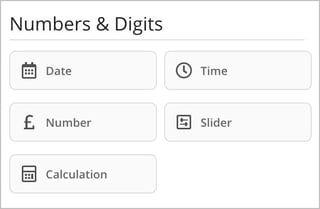
The Date field type is used when you want users to input a date for specific events, such as:
- When a task has been completed
- When a task has been signed off/approved
- When a task is scheduled to be performed
It is often beneficial to record dates for various events within a case, as this allows you to associate lead times with these date fields and set up automatic notifications and triggers.
Time
The Time field type is ideal for situations where you need users to specify time in a form. For instance, if your form pertains to a meeting invitation, it becomes essential to capture both the start time and end time for each case created. By utilizing the Time field, you guide users to enter time in a standardized format, ensuring consistency and clarity across all submissions.
Number
When using the Number field type, users are restricted to entering numeric values only. This ensures accurate data entry and enables mathematical operations within the case. However, it is not possible to set specific input rules such as minimum or maximum values, or character limits for this field.
You can associate this field type with your created units, such as currency, distance, or weight.
Please note that the Number field type must always be used in conjunction with the Calculation field type if you wish to perform calculations within the system.
Slider
The Slider field type is versatile and can be used for various purposes, including survey assessments, employee feedback, customer satisfaction evaluations, and risk assessments. Additionally, it can serve as a tool to gauge the progress of a project or assess team dynamics.
Experiment with the five different slider options available to identify the one or more that best suit your specific needs and applications.
Tip.You can effectively combine the Standard, Risk, and Temperature slider functions with the Calculation feature for enhanced data analysis and insights.
Calculation
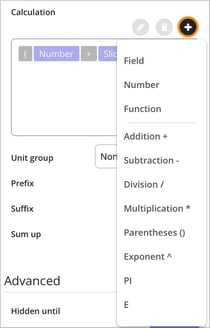 The Calculation field type works in much the same way as formulas in Excel, but with a simpler setup. You build your formula by selecting which values to include and then adding operators and any parentheses in the order you want.
In a calculation field, you can use the field types Number, Slider, as well as constant numbers. These can then be combined using the basic arithmetic operations:
-
addition
+ -
subtraction
- -
multiplication
* -
division
/
You can also use parentheses to control the order in which the calculation is performed. More advanced Excel logic, such as IF statements or similar functions, is not supported.
How to build a calculation
When you select a Calculation field, you can click + to add the components that should be included in the formula. You can choose to add fields, functions, parentheses, and numbers.
For example, if you want to create a calculation where a Number field and a Slider field are first added together, and the result is then increased by a constant value, you can build the formula like this:
(Number + Slider) + 10

In the example above, parentheses are used to first sum the values from the Number field and the Slider field. The number 10 is then added to this result.
Once you’ve added all the components to the calculation field, you can drag and drop them to arrange them in the correct order.
Note:
-
Try to avoid using other calculation fields as sources for new calculations. Instead, aim to complete the entire calculation within a single calculation field.
-
If you use fields from repeating fields as a source for the calculation, you should utilize the Custom Repeating Fields - Rep function to ensure the calculation accurately identifies which repeating fields to use.
- Write decimal constants using a period as the decimal separator, not a comma. For example, write
9.81instead of9,81.