
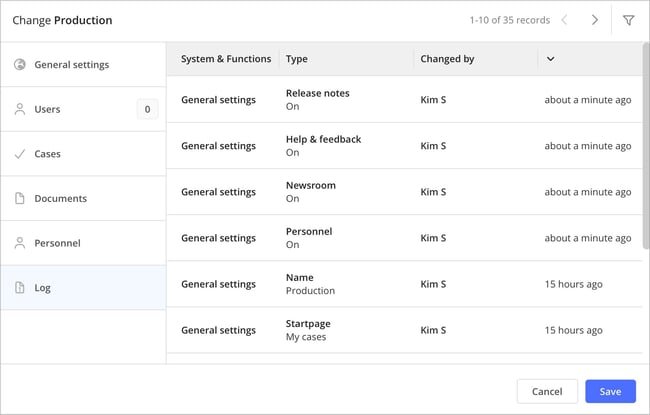
Starting with version 6.3.003, all changes made to profiles in Classic are logged. This allows users who are authorized to view and edit profile settings to track what was changed, when the change was made, and by whom.
Why this feature is valuable
The log showing which profile settings have been changed makes it easier to work in a structured and secure way with profile configurations. You can clearly see which adjustments were made, in what order, and which user was logged in when the change was carried out.
This enables you to review decisions afterwards, quickly understand why access levels or behaviour in the system have changed, and reduce the risk of misunderstandings between different administrators. As a result, administration becomes more controlled, traceable, and predictable, providing a stronger basis both for daily work and for internal follow-up, audits, and continuous improvement.
Improved traceability in administration
Easier troubleshooting when access levels or system behaviour change
Clearer overview of who made each change
Stronger basis for internal follow-up and reviews
What is logged?
From version 6.3.003 onwards, profile changes are logged. Every update to a profile is automatically recorded in the log, including what was changed, who made the change, and when it was saved. Changes made to profile settings before version 6.3.003 are not included in the log and therefore cannot be traced using this feature.
In the log, authorized users can see:
-
which settings were changed
-
who made the change
-
when the change was made
- any comments added in connection with a change
❗️Note: Timestamps are shown in a relative format, for example how many days ago something happened. To see the exact time, hover over the relative timestamp to display the precise date and time. In AM System, all timestamps are based on Central European Time (CET) during the winter and Central European Summer Time (CEST) during the summer, which corresponds to UTC+1 and UTC+2, respectively. This means that all events in the system—such as timestamps in cases are displayed according to Swedish time.
Accessing the log
Users with administrative permissions in the system can access the log for a profile via the Log tab in that profile.
To open the log:
-
Go to Administrator » Profiles
-
Open the profile you want to review.
-
Select the Log tab to see all recorded changes for that profile.
Add a comment to a logged change
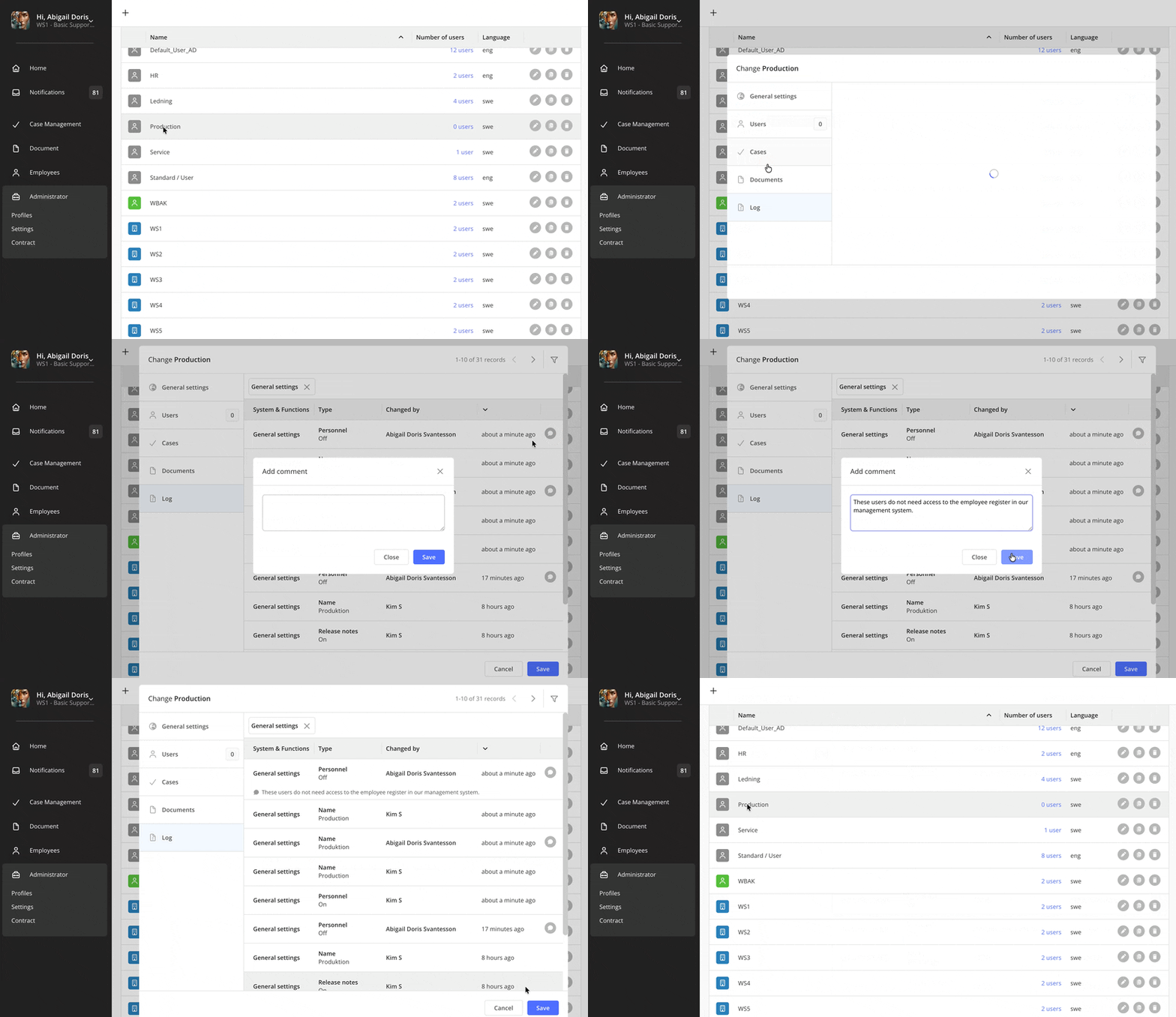
The log also includes a comments feature that lets you supplement a logged change with a short explanation or description. This is designed to increase traceability and give administrators more context around what has been changed, making it easier to understand the reason behind an adjustment. In turn, this simplifies follow-up, handovers, and ongoing administration.
|
To add a comment, click the speech bubble icon on the far right of the log entry. Only the user who made the change can add a comment to it, but everyone who has access to the log can read the comment. You can add one comment per log entry, and the user who wrote the comment can later edit or delete it in the same way.
💬 Note that the change must be saved before you, as a user, can add a comment to the log entry. Once the profile has been updated and the change is recorded in the log, you can open the comment field, write your comment, and save it together with the log entry.
Filtering the log
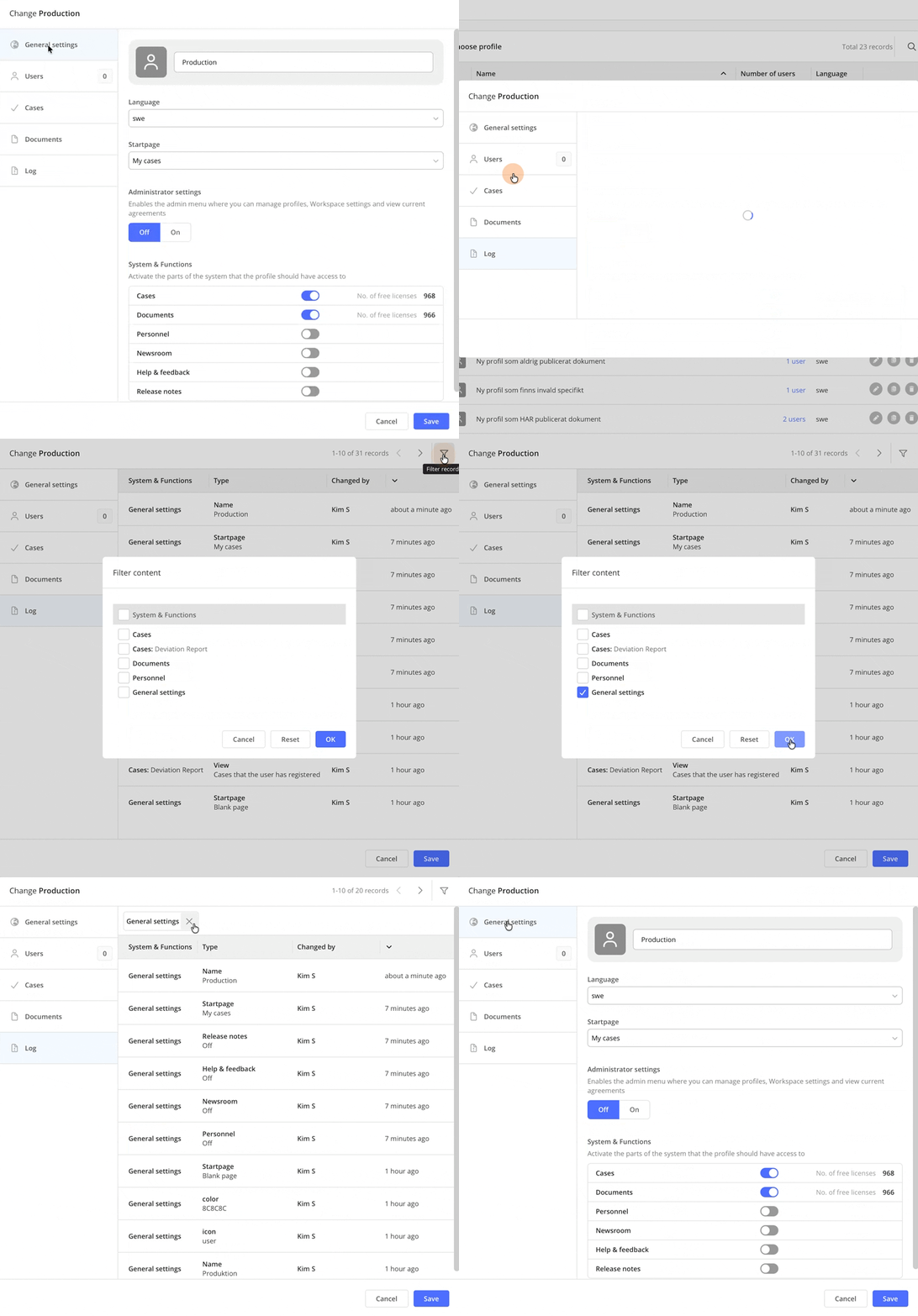
The log also includes a filter function. With the filter, you can, for example, choose to show only changes related to general settings or to settings linked to specific forms. This makes it easier to focus on the information that is most relevant at the moment.
 |
Good to know about the change log for profile settings
Details about users who are moved from one profile to another are only recorded in the log of the profile they are moved to. For example, if a user is transferred from Profile A to Profile B, this change will only appear in the log for Profile B. In the log for the previous profile (Profile A), there is no specific entry showing that the user has been removed from that profile.