
Edit images in Case Management
With the Edit image feature, you can make simple changes directly to images uploaded to a case without first opening a separate image editing program. This makes it easier to clarify what the image shows and highlight what matters in the context. For example, you can crop the image to focus on a specific area, mark an issue with an arrow or shape, draw directly on the image, or add explanatory text. This makes it easier for other users to understand what has been observed and what they should pay attention to. This feature is especially useful when an image is used to document, for example, a non-conformity, damage, or another observation, and when you want to make the information clearer before the case is handled further.
Please note: When an image is edited and the user confirms the changes by clicking OK in the editing dialog, the uploaded image is replaced by the edited version. This applies both to images in cases and to static images in forms. If you want to keep the original image, you should save a copy of it first
Edit an uploaded image in a case
Once you upload an image to an Image upload field in a case, the Edit image option appears next to the image. Image editing is supported for all file formats supported by the Image upload field.
To edit an uploaded image:
- Click the pencil icon on the image you want to edit.
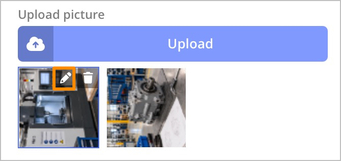
- The image opens in the image editor.
- Make the changes you want.
- Click OK when you're done.
Please note: You can edit the same image multiple times. Depending on the changes made, repeated editing may reduce the image quality and resolution.
Permissions and history for edited images in cases
All users who have permission to edit the relevant image upload field in a case can use the Edit image feature for images uploaded to that field. This means that the image can be edited not only by the person who created the case or originally uploaded the image.
It is also useful to know that each edit is saved in the case event log under Show events. The log shows not only that a change was made in the case, but also keeps previous versions of the image in the history. The images can also be downloaded from each event. This makes it possible to review earlier versions afterward, save documentation, or use the image history to follow up on what has changed over time.
Edit static images in case forms
Static images can be used to display information or instructions directly in a form. For example, an image might show a product, workplace, or piece of equipment that the user needs information about when registering a case. You can also crop the image to focus on a specific area or use arrows, shapes, and text to highlight what the user should pay attention to.
When building the form, you can edit a static image directly in the form builder:
- Select the field containing the static image in the form. If the field does not already contain an image, you first need to upload one.
- Click Edit image under the image properties.
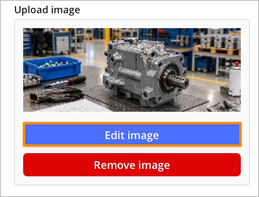
- Make the changes you want in the image editor.
- Click OK when you're done.
- Save the form.
Please note: There is no version history for static images in forms. When an edited image is saved, the previous version is replaced and cannot be restored. If you want to keep the original image, you should save a copy of it first.
Image editing tools
The image editor includes several tools for adjusting and annotating images. You can:
- crop the image to remove parts you do not want to display
- draw directly on the image
- add lines and arrows to point out specific details
- add shapes, for example to outline or highlight an area
- add text directly to the image
For several of the tools, you can also adjust settings such as color and size.

| 1. Select objects | 2. Insert and draw objects |
| 3. Insert text | 4. Change color and size |
| 5. Delete an object | 6. Undo during editing |
| 7. Crop and rotate the image | 8. Rotate the image in fixed increments |
| 9. Adjust the display size | 10 . Resize the dialog |
Limitations
Image editing is available to logged-in users working with cases on a computer. The feature is not available:
- when a case is registered through Public registration
- when the system is used on a mobile device. In that case, we recommend using the annotation tools available on most mobile platforms before uploading the image instead.