
The feature is accessible in all forms under Advanced » Manage » Duplicate form.
If you don't see the Manage heading and its features, it may be because you lack administrator privileges in the case module. For more information on administrator mode, please refer to this helpdesk article.
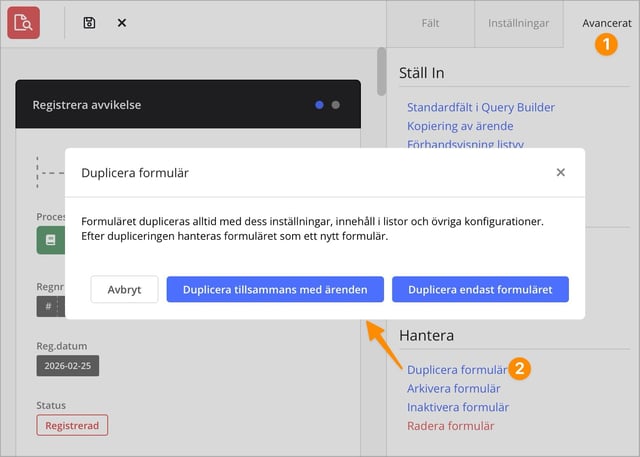
Difference between duplicating with cases and duplicating only the form
Duplicate with cases
- If you choose to duplicate a form together with its cases, the system creates a copy of both the form and all existing cases linked to it.
- Any changes you make in the duplicated form will only affect the cases that were copied with the form during duplication. The original cases are not affected by changes in the copy. For example, if you have a form with three cases and duplicate it, the duplicated cases will contain the same information as the original cases at the time of duplication. If you then edit the duplicated form, only the duplicated cases will be affected.
Duplicate form only
- If you choose the option Duplicate only the form, only the form and its settings are copied. This means you get an empty copy of the form without any cases.
Important rule when editing a form
Any change you make to a form will always affect all cases linked to that specific form. This is a fundamental rule in the system and applies without exception.
No matter whether you duplicate the form with or without cases, a completely independent copy is created. This means you can make changes in the new form without affecting the original form or its cases.
❗Please note:
-
It is important to understand that the access settings for the form are not copied during the duplication process. This means you will likely need to adjust your access settings, including any specific permissions you have configured for sections, groups, or fields within the form, on the duplicated copy after it has been created. Since the access settings on duplicated forms default to granting access only to administrators, it is likely that many personal fields in the duplicated form will lack users. However, if you add access for these users immediately after duplication, they will appear in the same personal fields as in the original form.
-
When a form is duplicated, not only its structure is copied, but also all settings configured under Advanced » Set and Automate & Integrate. Additionally, new links to the following features are created:
-
Public registration
-
Incoming Webhook.
-
- The addon Data retention is automatically included when a form is duplicated. When you create a copy of a form, all configured add-ons – including Information Cleaning – are therefore also active in the duplicated form. If you do not want the duplicated form to be covered by Information Cleaning, you need to deactivate the add-on or remove it from the copy.
- If you choose to publish a form without any existing cases, the case number series in the duplicated form will be reset and will start from case number 1. Please note that this does not apply if you are using the global case number feature.
- If you plan to duplicate the form that contains existing cases, please be aware that the duplication process may take some time to complete. 💡 After publishing the form, we recommend waiting a moment before navigating to Cases » Settings to check if your copy has been successfully created.
Please note that duplicated forms are not placed in the same category as the original; instead, they are assigned to the category Not in any category.
- If you have a large number of existing cases in the form, we recommend reaching out to us before proceeding with the duplication.
- If you have chosen to duplicate a form, it may be a good idea to review how the original form should be handled. For example, it may be appropriate to prevent new cases from being registered by archiving the original form or by adjusting its access settings.