
Background
A case can have one of four statuses, depending on its stage in the workflow. These statuses are:
- Registered
- In progress
- Resolved
- Completed
You can influence three of these statuses in the form under the Settings tab in the right-hand main menu. Any cases that do not match one of these three statuses are automatically assigned the Registered status.
💬 Note:
It is not possible to rename or add additional statuses at this time. The four statuses are fixed and predefined in the system.
These predefined statuses are designed to create a uniform and consistent handling of cases. The inability to change or add statuses ensures that all users work under the same conditions, maintaining clarity and consistency in communication regarding case statuses.
|
Status Settings For each status, you can configure:
To change the status of a case from Registered, define in the form which field or fields will act as conditions and thereby trigger the status update.
|
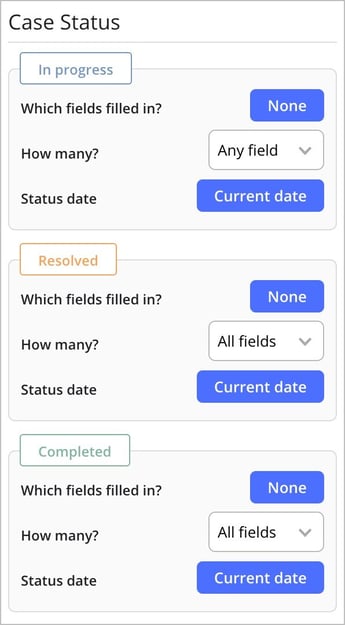 |
💬 Practical example of how statuses work in the workflow:
- A newly created case that is entered into the system is first given the status Registered. When the fields you have defined for the **In Progress** status are filled in, the case is automatically updated to In Progress.
- The case then changes to Resolved once the field or fields linked to the Resolved status have been completed.
- Finally, the resolved case is set to Completed when the fields you have defined as closing fields under the Completed status are filled in.
If no case status is configured in the form, the case will automatically be assigned the status Registered. In practice, this means that any case that does not meet one of the three sets of criteria for the statuses In Progress, Resolved, or Completed will, by default, appear as Registered in the system.
Good to know about case statuses
-
Changes you make to the case status settings do not automatically apply to cases that are already created. A case’s status is only updated when an existing case is opened, edited, and saved again. At that point, the system checks the current conditions for each status and, if needed, updates the status according to your latest configuration. This means that historical cases are not mass-updated when you adjust the rules; instead, the new logic is applied gradually as cases are actively processed.
- Currently, you cannot control a case’s status based on a specific option selected in a choice field (such as a lists or radiolist), in the same way as with the Hidden until function. The status logic can only evaluate whether a field is filled in or empty – not which value has been selected. This means you cannot configure a status change to occur only when one particular option is chosen; as soon as the field contains any value, the condition is considered met. If you need different workflows depending on the selected option, we recommend using separate fields or additional logic outside the status settings to handle that.
-
A case does not have to pass through every step in the status flow. Depending on the type and scope of the case, and how you choose to configure your rules, some steps can be skipped entirely. For example, a case can move directly from Registered to Completed if you define conditions that allow it to be closed without first being set to In Progress or Resolved. This enables quick handling of simpler or administrative cases, while more complex cases can still follow all intermediate steps.
This flexibility allows you to tailor the workflow to your organization’s needs – from short, streamlined processes to more detailed and controlled flows where each step is monitored and followed up. -
Status settings are used in several parts of the system and determine how cases are displayed, filtered, and managed across different views and functions. They are used, for example:
- In the Send Message addon, where the case status can control when messages are sent, to whom, and with what content. You can, for instance, trigger an automatic notification when a case reaches the status **Resolved** or **Completed**.
- In the Query Builder, where status can be used as a filter condition or shown as a column in reports and lists. This makes it easy to create views that show, for example, all cases **In Progress**, all **Completed** cases within a given period, or all **Registered** cases that have not yet been handled.
- In the My Cases list view, where the status provides a quick overview of where each case is in the workflow. Here, users can sort, filter, and prioritise their work based on status, which supports day-to-day planning and follow‑up.
❗Status on repeating field
We do not recommend using repeating fields as the basis for controlling a case’s status. The reason is that the system cannot reliably handle all scenarios – for example, when a new sub‑action is added in a repeating field – which makes the status logic unstable. The system may also interpret the status conditions as fulfilled even when there are no rows in the repeating field. In addition, a repeating field can contain a very large number of rows, and the system cannot determine which specific row should be used as the basis for the status change. Instead, we recommend linking the status change to a separate field that comes after the repeating field. This field can be filled in when all actions in the repeating field have been completed – for example, a date field titled **“All actions completed”**.