
Text document
💬 Tip: Before creating a header/footer for the first time, we recommend duplicating the default header, Default, so you have something to fall back on or compare with. Duplicating an existing header is also a good idea if you plan to create multiple headers for your site.
How blocks work in headers and footers (text documents)
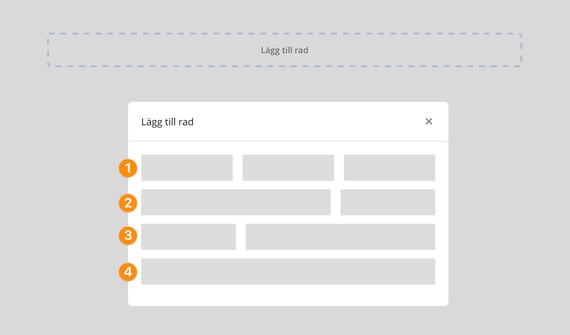
In the header and footer for text documents, you build the layout using predefined blocks. The selected block determines how the available space is divided and how much horizontal room each section gets.
There are four block types:
Block 1: Three equal-width sections
Block 2: One larger section on the left and a smaller section on the right
Block 3: A smaller section on the left and a larger section on the right
Block 4: One single section that spans the full page width
Within each section, you can insert items such as a logo and metadata (for example, “Approved by”). If you choose to display a label (e.g., “Approved by”), both the label and the value must fit within the same section. This is why the block selection often determines whether the text fits on one line or wraps automatically.
A block can also consist of one or multiple rows, which lets you place multiple metadata fields below one another for a more structured layout. A practical approach is to start from an existing block and adjust the rows there, since it makes editing and reordering easier.
You can see whether a block contains one or multiple rows by clicking the block. In the same view, you can also control whether the block should be positioned above or below another block, and adjust the spacing between blocks to improve readability.
When you select a row, you can choose the color and text size for the row, adjust the alignment of the text within the row, and decide whether the field label should be displayed. You can also set the row height, which affects the spacing between other rows in the block. For example, if you want to change the size of the document name, click the row to open the field properties, where you can adjust settings such as color and size.
Note: When selecting a logo, the logo from the default company is displayed. If you have multiple companies linked to your site, the logo is determined by the company information in the category where the document is published.
 Note: When adding company information to the header/footer under Print, it includes a few additional field types not available under Review or Public Link:
- Page {page} of {pageof}
- COPY Valid for printing until {date}
Layout Document
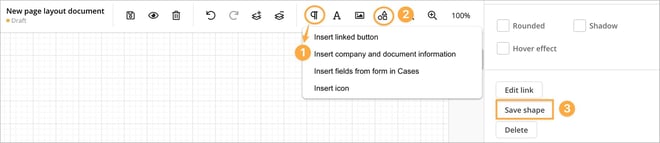
Unlike text documents, where headers and footers are managed centrally, you will create the header from scratch in the layout document using the Insert Company and Document Information feature (1). This allows you to select the information and metadata you want to include in your header. You can then position these elements as desired and adjust the formatting, such as font style, color and shape.
It is beneficial to save your created header as a shape in your personal "library" (3). This makes it easy to reuse the header in other layout documents through the Shape menu under My Shapes (2). Please note that these shapes are only accessible to the user who created them and are not shared with other users in the system. An alternative to saving the header as a shape is to create a layout document that includes your header and then share that document with colleagues, who can copy the header from it.
If you are working with template documents, you can certainly include the header in those templates as well. To share your created header, save the document as a template in your internal template library.
💬 Tip: Insert company logo
When you want to add the company logo to a layout document, we recommend using the Insert Company and Document Information feature instead of inserting it as a regular image. The logo is then fetched from the Workspace settings, and if you change the logo later, it is automatically updated in all documents where this feature is used.
After inserting the logo, you can freely position it and adjust its size. The logo itself is only displayed when the document is saved, not in edit mode, so you may need to test different options by saving the document several times.
Note that changes in a layout document can only be made in edit mode. If the document is already published, it is locked for editing, and you must first create a new draft before adjusting the logo’s size or placement.
❗Note: Unlike text documents, you must also create headings for the company information you choose to include in the header of a layout document.