
Edit images in documents
With the Edit image feature, you can make simple changes directly to images used in a document, without first editing the image in a separate application. You can crop the image, draw on and highlight parts of it, and add arrows, shapes, and text.
The feature is available for images in both text documents and layout documents. It can be used, for example, to highlight important information, draw attention to a specific area, or adapt an image to the content of the document.
Please note: When you edit an image and click OK, the image in the document is replaced by the edited version. However, the change is not saved in the system until you save the document. If you close the document without saving, your changes will be lost.
If you want to keep the original image, we recommend saving a copy on your device.
Edit an image in a text document
To edit an image that has been added to a text document:
- Open the document for editing. If the document has already been published, you must first create a new version.
- Select the image you want to edit.
- Click Edit image in the toolbar displayed next to the image.
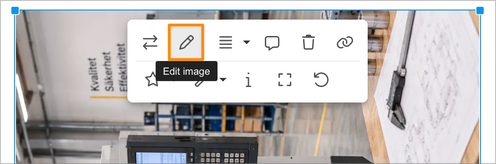
- The image opens in the image editor.
- Make the desired changes and click OK when you are finished.
Edit an image in a layout documen
To edit an image in a layout document:
- Open the document for editing. If the document has already been published, you must first create a new version.
- Select the image you want to edit.
- Right-click the image and select Edit image, or select the image and click Edit image in the toolbar on the right.
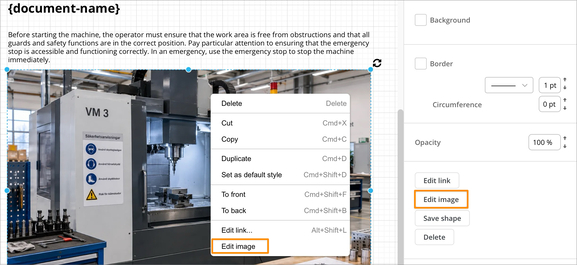
- The image opens in the image editor.
- Make the desired changes and click OK when you are finished.
Good to know about editing images
Images follow the document's version history. This means that each version of a document retains its own version of the image. If you create a new version and then edit an image, the image in previously published or saved versions is not affected. This allows you to update and clarify content in a new version without changing the history of earlier document versions.
You can edit the same image multiple times if needed. This can be useful if you want to make changes gradually, for example by adding more annotations, adjusting the crop, or clarifying information with text and shapes. However, depending on the changes you make, repeatedly editing an image may reduce its quality and resolution. If maintaining high image quality is important, we therefore recommend using the original image whenever possible or saving a copy before making multiple edits.
Image editing tools
The image editor includes several tools for adjusting and annotating images. You can:
- crop the image to remove parts you do not want to display
- draw directly on the image
- add lines and arrows to point out specific details
- add shapes, for example to outline or highlight an area
- add text directly to the image
For several of the tools, you can also adjust settings such as color and size.

| 1. Select objects | 2. Insert and draw objects |
| 3. Insert text | 4. Change color and size |
| 5. Delete an object | 6. Undo during editing |
| 7. Crop and rotate the image | 8. Rotate the image in fixed increments |
| 9. Adjust the display size | 10 . Resize the dialog |