
When is this feature used?
In many areas of Classic, value lists are used to control which options a user can choose in a field. A value list can, for example, contain categories, classifications, statuses, types, areas, or other predefined options that should be selectable in the system
Creating a value list is straightforward when it only contains a few values. However, if the list includes many options, adding each value manually, one by one, quickly becomes time‑consuming. The work also takes longer when values need to be maintained in multiple languages, since every option must be complemented with the correct translation.
To simplify this work, you can use the Add multiple values feature. It lets you add many values at once by typing or pasting multiple lines in a single step. If you work with multiple languages, you can also paste values into several language columns at the same time, for example from a spreadsheet.
Where is this feature available?
❓ Note: At present, the feature is only available for Extra fields in Documents, for fields of the Value list type. It is designed to be reused in more areas of Classic over time, and this article will be updated as support is expanded.
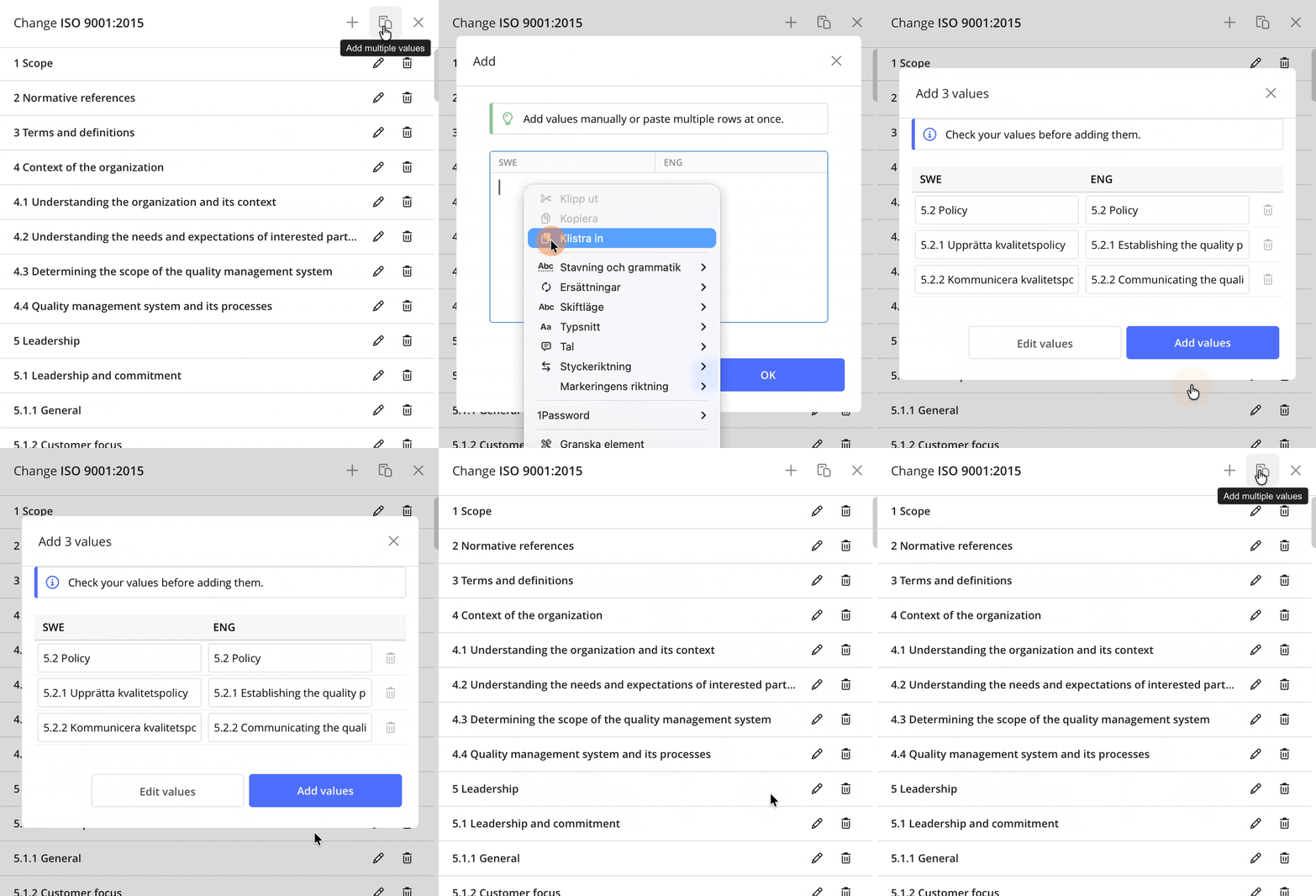
To use the feature, first open an Extra field of the Value list type. In the value list editor, you will then see the Add multiple values icon next to the regular plus icon used for adding a single value.

Add multiple values
To use this feature:
- Go to Documents » Settings » Extra fields.
- Create or open an Extra field of the Valuelist type.
- Open the value list.
- Click the Add multiple values icon.
- Type or paste the values you want to add.
- Check that each value ends up in the correct place.
- Click OK to proceed to the preview.
- Review the values.
- Click Add values to add them to the value list.
Paste values
The feature is designed to work smoothly with tools like Excel and other spreadsheet applications. If you already have a list of values in Excel, simply copy the cells and paste them directly into the dialog. Each row will then be added as a separate value in the value list.
If the system has only one active language, paste one value per line. If Classic is configured with multiple active languages, a separate column is shown for each language. You can then copy several columns from, for example, Excel – such as a Swedish and an English column – and paste them at the same time. The values are automatically placed in the correct language column in Classic.
 |
💬 Tips:
- If a value is missing in one language column, the empty language cell is automatically filled with the value from an adjacent language column. This means you cannot intentionally add a value with a blank language.
-
If you use AI to generate a list of values in multiple languages, ask for the list in a tab‑separated format. You can then copy and paste the entire list – with all values and languages – directly into Classic.
Review before adding value
Once you have pasted the values and clicked OK, a preview is displayed. This allows you to review the content before anything is added to the value list.
In the preview, you can:
-
Check that each value is on the correct row and in the correct language column
-
Edit individual values
-
Remove rows that should not be added
-
Go back and adjust the values before saving
The values are not added to the value list until you click Add values.
Good to know
- Empty rows are ignored when values are pasted.
- Duplicate values are allowed. If you paste the same values multiple times, new rows will be created in the value list each time.
- The feature has a limit of 1,000 rows per paste. If you paste more than 1,000 rows, any additional rows are removed and you will see a message informing you of this.