
Automatic page breaks when printing
Text documents in Classic are not built with fixed pages. When you edit a document, the content is therefore displayed as one long, continuous flow.
However, when the document is printed or saved as a PDF, the content is automatically divided into pages that match the selected print format.
This means the document will always include page breaks when printed, even if you have not added any page breaks yourself.
Insert a manual page break
If you want to control where a new section starts, you can insert a manual page break directly in the document.
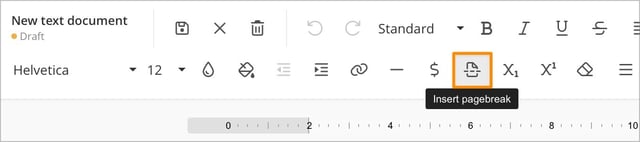
Place the cursor where you want the next page to begin, then click Insert pagebreak in the toolbar.
The manual page break:
-
is visible when the document is read in Classic
-
s visible in public documents
-
is retained when the document is printed or exported to PDF
This means the manual page break is always preserved, while the document can still be automatically split into additional pages if the content is longer than one printed page.
Example: If you insert a page break between two chapters, the next chapter will always start on a new page. If that chapter is long, additional page breaks will be added automatically when you print.
Why can page breaks differ between users?
In text documents, the header can be dynamic. This means the content of the header may vary depending on, for example:
-
which category the document is published in
-
who is viewing the document
-
which company information is displayed
-
other metadata included in the header, such as revision changes
Because the header can take up different amounts of space, the automatic page breaks may end up in different positions for different users or categories.
This only affects page breaks that are created automatically when printing. Manually inserted page breaks always remain in the same position.
Preview before publishing
If you want to check how the document will look when printed before you publish it, you can use the Preview printouts function.
There, you can see how the document will be split into pages based on the selected category’s header and footer.
Read more in the article Preview printouts before publishing.